



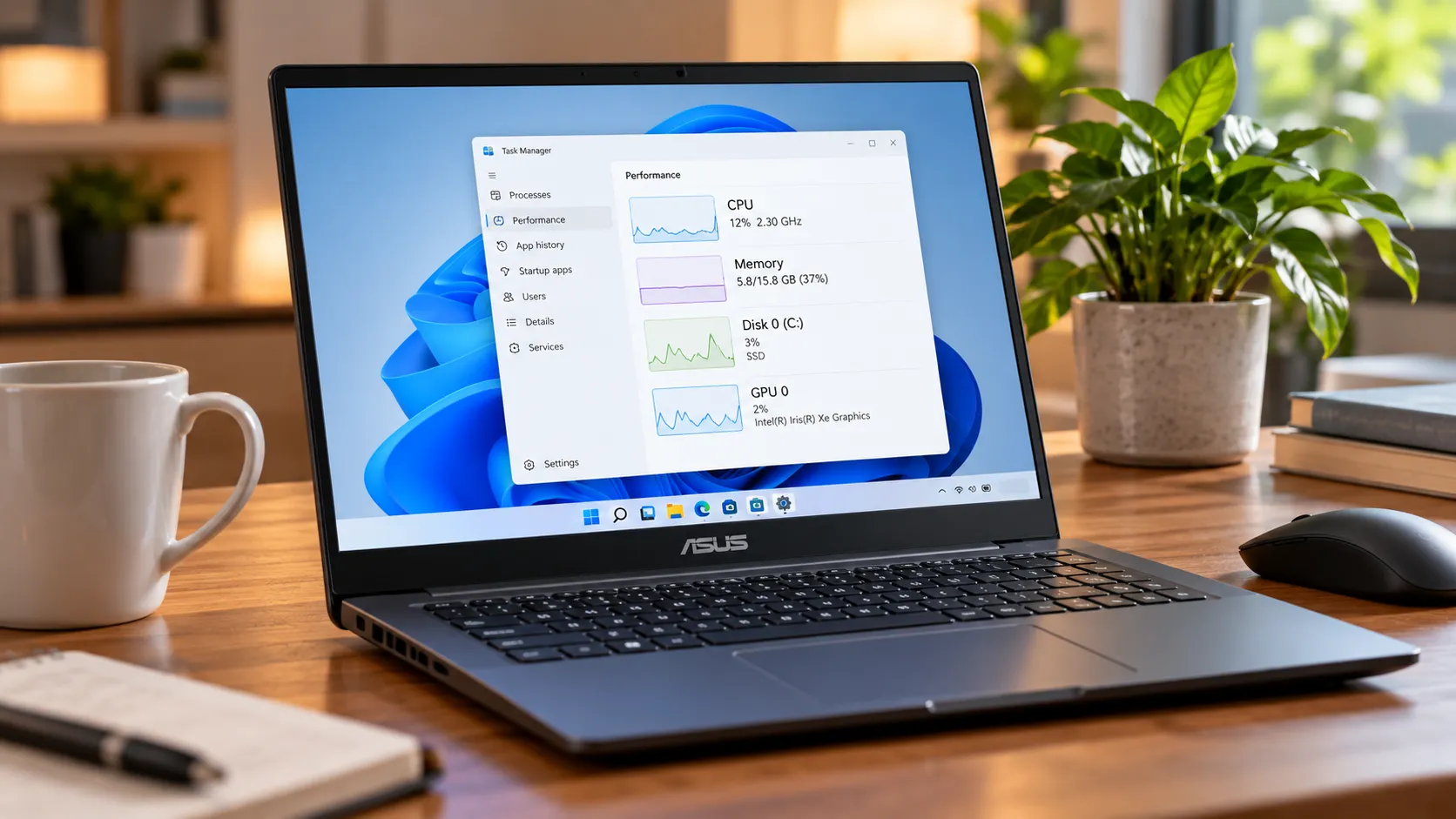
An ASUS laptop running slow on Windows 11 rarely comes down to one mystery cause. It's usually a process using too much CPU, memory pressure, low storage space, an older hard drive, heat buildup, or a power setting working against you. Sometimes more than one problem is involved.
Task Manager can help narrow that down before you start changing settings. This guide starts with a quick triage check, then moves through software cleanup, power and thermal settings, ASUS-specific tools such as MyASUS, and the point where settings are unlikely to fix the problem.
If you're also seeing freezes, black screens, unexpected restarts, or total unresponsiveness, ASUS recommends checking Windows, BIOS, and driver updates and running hardware diagnostics as part of its troubleshooting process.
Run this 60-second check first
Don't start changing settings blindly. A quick look at what Windows is doing can point you toward the actual bottleneck.
Save your work and restart the laptop. Use Start > Power > Restart rather than simply closing and reopening apps.
Open Task Manager with
Ctrl + Shift + Esc. Watch CPU, Memory, Disk, and GPU usage for a minute while the laptop is otherwise idle. If one process remains unusually active, note its name before ending it. Don't terminate an unfamiliar Windows process just because its usage spikes briefly.Check the temperature and fan behavior. If the laptop feels unusually hot or the fans stay loud during light work, heat or a demanding background process may be contributing.
Listen for unusual storage noise. Repeated clicking, grinding, or other new mechanical sounds matter if the laptop uses a traditional hard drive. Back up important files promptly and investigate the drive rather than assuming software cleanup will fix it.
Check the charger and battery status. If performance changes dramatically between battery power and AC power, or Windows reports slow charging or charging problems, include the charger and power settings in your troubleshooting.
What you find here decides which section below is most useful.
Match the symptom to the likely bottleneck
Task Manager shows which resource is under pressure, but the reading needs context.
Sustained high CPU: Check which process is responsible. A stuck application, Windows update, background utility, or malware can all produce high CPU activity.
High memory usage: Close apps you don't need and check whether one program keeps consuming more memory over time. If the laptop regularly runs short of memory during normal use, available RAM may be the limiting factor.
High disk activity: Check which process is using the drive before assuming the storage hardware itself is slow. Windows Update, indexing, antivirus scanning, low free space, and mechanical hard drives can all make disk activity noticeable.
High GPU usage: This can be normal while gaming, editing video, using AI tools, or running other graphics-heavy software. Check the process using the GPU if the activity doesn't match what you're doing.
To check the drive type, search Windows for Defragment and Optimize Drives.
Windows identifies whether the drive is a hard disk drive or solid-state drive. Hard drives are defragmented during optimization, while SSDs are optimized using TRIM. Microsoft says Windows normally handles this automatically on a weekly schedule.
That means you generally don't need to repeatedly run Optimize yourself.
If the system drive is low on space, go to Settings > System > Storage. Remove temporary files you don't need or use Storage Sense to clean them automatically. Microsoft confirms that low disk space can reduce Windows performance, but there isn't one universal percentage of free space every PC must maintain.
Speed up an ASUS laptop with built-in Windows fixes
Once you've identified the likely bottleneck, work through the software-side fixes that match it.
Install Windows updates. Go to Settings > Windows Update > Check for updates. Also check Advanced options > Optional updates for available driver updates.
Update ASUS drivers and BIOS. ASUS recommends keeping the BIOS, Windows packages, and drivers current when troubleshooting slow performance. MyASUS can check supported systems automatically under System Update.
Trim startup apps. Open Task Manager and select Startup apps, or go to Settings > Apps > Startup. Disable software you don't need launching every time Windows starts.
Don't disable security software, hardware utilities, or anything you don't recognize without checking what it does first.
Limit unnecessary background activity. For supported apps, go to Settings > Apps > Installed apps, open the three-dot menu beside the app, select Advanced options, and change Background app permissions.
Not every desktop program exposes that setting. Traditional Windows desktop apps may need to be configured from inside the app itself.
Free up storage space. Go to Settings > System > Storage > Temporary files and remove categories you no longer need. Review items such as Downloads or previous Windows installations carefully before deleting them.
You can also enable Storage Sense from the Storage page.
Reduce visual effects if the laptop is older or underpowered. Search for Adjust the appearance and performance of Windows and reduce animations or other effects you don't need. Transparency can also be switched off under Settings > Personalization > Colors.
These changes usually make the biggest difference on machines with limited graphics or memory resources.
Run a malware scan if resource use looks suspicious. Open Windows Security > Virus & threat protection > Quick scan. If you have stronger reason to suspect malware, Microsoft also provides Full scan and Microsoft Defender Offline options.
Avoid registry cleaners, generic "driver booster" programs, and debloat scripts that make large undocumented changes to Windows. Driver updates should come through Windows Update, MyASUS, or ASUS's official support site.
Check ASUS power and thermal settings
If the laptop feels slow mainly on battery power, becomes hot under light workloads, or keeps its fans running hard, check both Windows and ASUS performance settings.
Start with Settings > System > Power & battery > Power mode.
Windows can offer modes such as Best power efficiency, Balanced, and Best performance depending on the device and configuration. Available choices can vary by laptop and power state.
Don't assume Best performance is automatically the right choice. A more aggressive power profile can increase processor power and fan speed, but a thermally constrained laptop may eventually reduce performance as temperatures rise.
ASUS also provides model-specific performance controls.
On supported non-gaming laptops:
Open MyASUS.
Select Device Settings.
Look under Power & Performance.
Check for options such as ASUS Intelligent Performance Technology or Fan Profile.
Available modes vary by model. ASUS currently lists options such as Performance, Balanced or Standard, Whisper, and on some newer systems Full-speed mode.
ROG and TUF gaming models generally use Armoury Crate for their performance and fan controls instead.
Check the charger if performance drops on AC power
Make sure the charger can supply the power the laptop expects.
ASUS recommends using the original adapter and cable where possible. If you're using another charger, ASUS says it should be a certified model capable of supplying at least the recommended power for the laptop.
You can check the recommended charger wattage in MyASUS on supported models or through the laptop's specifications on ASUS's site.
A USB-C charger can also produce a Slow Charger warning if it supplies less power than the laptop's recommended AC adapter, even when it technically supports charging.
If the battery drains while the laptop is plugged in, charging is unusually slow, or Windows shows a charger warning, troubleshoot that before treating sluggish performance as purely a Windows problem.
Check heat and airflow
ASUS says blocked vents and excessive heat can reduce system performance.
Make sure the intake and exhaust areas aren't pressed against a bed, blanket, couch cushion, or other surface that blocks airflow.
If dust is visible around the vents:
Shut down the laptop.
Disconnect the charger.
Use a commercially available can of compressed air from a reasonable distance.
Keep the can upright.
ASUS specifically warns against powerful air compressors because excessive pressure can damage fan blades.
If the laptop remains unusually hot or the fan runs at high speed constantly after the vents are clear and background CPU use is low, move on to ASUS diagnostics.
Diagnose hardware with MyASUS
If Windows cleanup and power settings don't solve the slowdown, use ASUS's own diagnostics before resetting the PC.
Open MyASUS > System Diagnosis on supported devices.
ASUS's current diagnostic tool can check components including:
Memory
Hard drives and SSDs
Battery
Fan
AC adapter
Wi-Fi and Bluetooth
System hardware
It also has a Slow system diagnostic scenario designed to check areas such as memory, storage space, drive health, application usage, and fans.
Not every ASUS model exposes the same MyASUS features. If System Diagnosis doesn't appear, the device may not support that function through the Windows app.
Some newer ASUS systems also include MyASUS diagnostics through Windows Recovery Environment or UEFI, which can be useful if Windows itself isn't running properly.
Update BIOS and ASUS drivers carefully
Use MyASUS > System Update where available, or download the exact files for your model from ASUS's official support site.
Don't use third-party driver-update programs.
If you're updating the BIOS:
Connect the laptop to reliable AC power.
Don't shut it down during the update.
Use the BIOS package and procedure ASUS provides for the exact model.
An interrupted BIOS update can leave a machine unable to boot.
If the slowdown began immediately after installing a specific driver or application, reversing that change may make more sense than updating everything at once. Uninstall the application or use Device Manager to roll back a recently changed driver when the rollback option is available.
Know when to use Windows recovery
Don't jump straight from a slow laptop to a factory reset.
Windows 11 now offers several recovery options, and the least disruptive one may be enough.
If the problem started after an update, driver installation, or software change, try System Restore when an appropriate restore point is available.
For Windows system-file problems, Microsoft also offers:
Settings > System > Recovery > Fix problems using Windows Update > Reinstall now
This reinstalls the current version of Windows while preserving your apps, files, and settings.
If that doesn't solve the problem, Reset this PC can reinstall Windows while letting you choose Keep my files or Remove everything. Installed apps and settings are removed even when personal files are kept.
Back up anything important before using recovery or reset tools.
When to stop changing settings
Settings can't repair failing hardware.
Stop troubleshooting and back up your data if you encounter:
Repeated clicking or grinding from a mechanical drive
A storage, memory, battery, fan, or adapter failure reported by MyASUS
Persistent freezes or crashes after software troubleshooting
A laptop that regularly overheats despite clear vents and normal workloads
A drive that reports health errors or begins losing files
Charging or power problems that persist with the correct adapter
ASUS recommends contacting service when its hardware diagnostics report a failure.
An older laptop can also simply reach the point where its hardware is the limitation. A mechanical drive can often benefit substantially from replacement with an SSD, while systems that regularly exhaust their memory may benefit from more RAM if the model allows upgrades.
Those are hardware changes, not settings tweaks.
What to do next
Start with Task Manager and identify whether CPU, memory, disk, GPU, heat, or power behavior stands out.
Then work in stages: Windows and startup cleanup first, ASUS power and cooling settings second, MyASUS diagnostics and official updates third.
After making a change, use the laptop normally rather than changing five more settings immediately. If performance improves, you'll know what actually helped.
If MyASUS reports a hardware failure or a mechanical drive starts making unusual noises, back up important data and contact ASUS or a qualified repair service instead of continuing to tune Windows.






Comments
Be the first, drop a comment!