



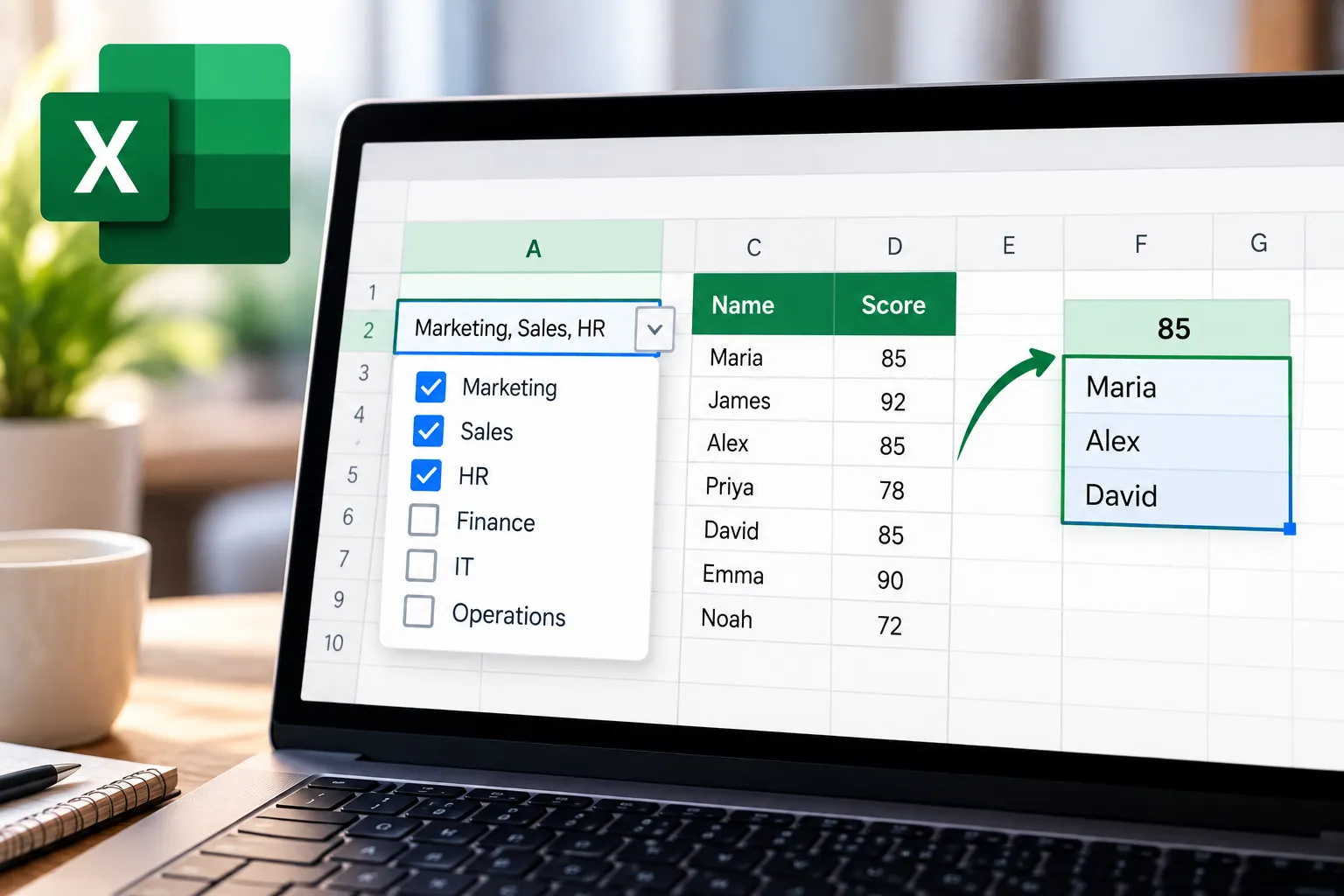
"Excel multiple values in one cell" can mean two completely different things.
One is an input problem: can someone choose several items from one dropdown and store all of those selections in the same cell? The other is an output problem: can a formula return every matching result instead of stopping at the first one?
Excel handles those two cases differently.
Microsoft's current Data Validation documentation still describes list validation as selecting an entry from a predefined list. It does not include a built-in multi-select setting.
For lookups, modern Excel does have a native solution. The FILTER function can return every matching record and automatically spill those results into neighboring cells.
Excel multi-select dropdowns are still not native
A standard Excel Data Validation dropdown accepts one selection per cell.
There is no built-in checkbox or setting that changes a Data Validation list into a multi-select dropdown that appends several selected items into the same cell.
Microsoft Q&A responses through 2026 continue to state that multi-select behavior requires a workaround rather than a native Data Validation option.
The most common desktop workaround uses VBA.
A Worksheet_Change macro can detect a new dropdown selection, preserve the cell's previous value, and append the new selection using a delimiter such as a comma or line break.
That can turn this:
Category A
into this after several selections:
Category A, Category B, Category C
The 2023 Microsoft Community Hub discussion used exactly that kind of VBA approach.
The important detail is what Excel actually stores: one text value containing several pieces of information.
It may look like several selections to a person, but Excel still sees one cell containing one string.
VBA multi-select dropdowns have a web limitation
The VBA workaround also matters less if the workbook needs to work in a browser.
Microsoft says Excel for the web can open macro-enabled workbooks, but it cannot create, edit, or run VBA macros.
That means a VBA-powered multi-select dropdown should be treated as a desktop Excel solution.
If several people need to enter responses through Excel for the web, SharePoint, or another browser-based workflow, storing each choice in its own row or column is generally easier to maintain than relying on a desktop-only event macro.
Why combined dropdown selections cause PivotTable problems
Suppose three rows contain these values:
banana, apple, pearbananabanana, watermelon
A normal PivotTable doesn't interpret the commas as three independent responses.
It sees three distinct cell values.
That is why the Community Hub user found that counting "banana" did not produce the expected total. The standalone banana cell was one category, while banana, apple, pear and banana, watermelon were different text values.
A contributor in that discussion recommended changing the source structure so that each selection gets its own row.
Instead of:
Maria | Category A, Category B
store:
Maria | Category A
Maria | Category B
That structure gives each selection its own record, which is much easier for PivotTables, filters, formulas, and charts to analyze.
If you already have combined values, Power Query can split them into rows
You do not necessarily have to rebuild an existing dataset manually.
Microsoft's Power Query documentation supports splitting a delimited column into rows rather than separate columns.
For a cell containing:
banana, apple, pear
you can split at each comma and produce three records.
That means a workbook can still use a VBA multi-select cell for convenient data entry while transforming that combined text into a cleaner row-per-selection dataset for reporting.
The cleaner option, when possible, is still to store the data in separate records from the beginning.
Dependent dropdowns become harder with multi-select cells
A 2025 Community Hub discussion illustrates another complication.
The user had dependent dropdowns built with FILTER formulas. The setup worked when each parent question contained one selection, but broke when a VBA macro started storing several comma-separated selections in the same parent cell.
That is predictable from the data structure.
A dependent formula that expects:
Finance
is dealing with a different value when the source cell suddenly contains:
Finance, Marketing
Excel does not automatically interpret that string as two separate criteria.
The formula has to split or otherwise parse the combined value before it can use those selections independently.
For a questionnaire or other heavily conditional workflow, that extra parsing can become much harder to maintain than keeping each answer separate.
Excel lookups are a different problem
Returning multiple lookup matches does not require a multi-select dropdown or VBA.
Modern Excel can do this directly with FILTER.
Suppose:
Names are in
A2:A100Scores are in
B2:B100The score you want to search for is in
E2
Use:
=FILTER(A2:A100,B2:B100=E2,"")
If three people have the score in E2, Excel returns all three names.
The results spill downward into separate cells automatically.
Microsoft's FILTER documentation confirms that FILTER returns an array and dynamically spills the results into the required neighboring cells.
That is the cleanest current answer when the goal is "find every row that matches this value."
Why VLOOKUP and XLOOKUP aren't the right tools for repeated matches
VLOOKUP is designed to locate a lookup value and return a corresponding value from one row.
XLOOKUP improves that model considerably, but its standard behavior is still to return the item corresponding to the first match it finds.
If several people share the same score, neither standard VLOOKUP nor standard XLOOKUP is intended to return all of those matching rows automatically.
FILTER is.
That makes the choice straightforward:
Need one matching record: XLOOKUP is usually appropriate.
Need every matching record: use FILTER.
Older Excel versions without dynamic arrays may require more complicated array formulas or helper columns, but current Microsoft 365 and supported modern Excel versions can use FILTER directly.
How to return all matches in one cell instead
Sometimes the goal really is to put every result into one cell.
For that, combine FILTER with TEXTJOIN.
Using the same example:
=TEXTJOIN(", ",TRUE,FILTER(A2:A100,B2:B100=E2,""))
If the matching names are Maria, James, and Alex, the result becomes:
Maria, James, Alex
Microsoft's TEXTJOIN documentation confirms that the function combines multiple text values using a delimiter you specify.
This is useful for display.
It is not the best source structure if each name later needs to be counted, filtered, sorted, or summarized separately.
For analysis, let FILTER spill the matches into separate cells or keep the original source data in separate rows.
Can you split a joined result again later?
Yes.
Current Excel versions also include TEXTSPLIT.
If cell A1 contains:
Maria, James, Alex
then:
=TEXTSPLIT(A1,", ")
can split those values back across cells.
You can also spill them vertically by using the delimiter as the row delimiter instead.
That is useful when inherited data already contains delimited values, but it is still better to avoid repeatedly joining and splitting analytical data when separate records can be stored from the start.
Which structure should you use?
If the goal is choosing several options from a dropdown, standard Data Validation does not provide native multi-select behavior. A VBA workaround can append selections in desktop Excel, but the result is still one combined text value and the macro won't run in Excel for the web.
If the goal is reporting or PivotTable analysis, store each selection as its own record whenever possible. If the data is already combined, Power Query can split delimited values into rows before analysis.
If the goal is returning every lookup match into separate cells, use FILTER.
If the goal is showing every lookup match together in one cell, use FILTER inside TEXTJOIN.
The important distinction is whether several values merely need to look combined or whether Excel needs to treat them as separate data points later.
For display, one joined cell can be convenient.
For filtering, PivotTables, dependent logic, and further calculations, separate values are usually the cleaner structure.

















Comments
Be the first, drop a comment!