





![LibreOffice v4.3 for PC [Open Source Download]](https://m.media-amazon.com/images/I/41uovfMTo7L._AC_UY218_.jpg)
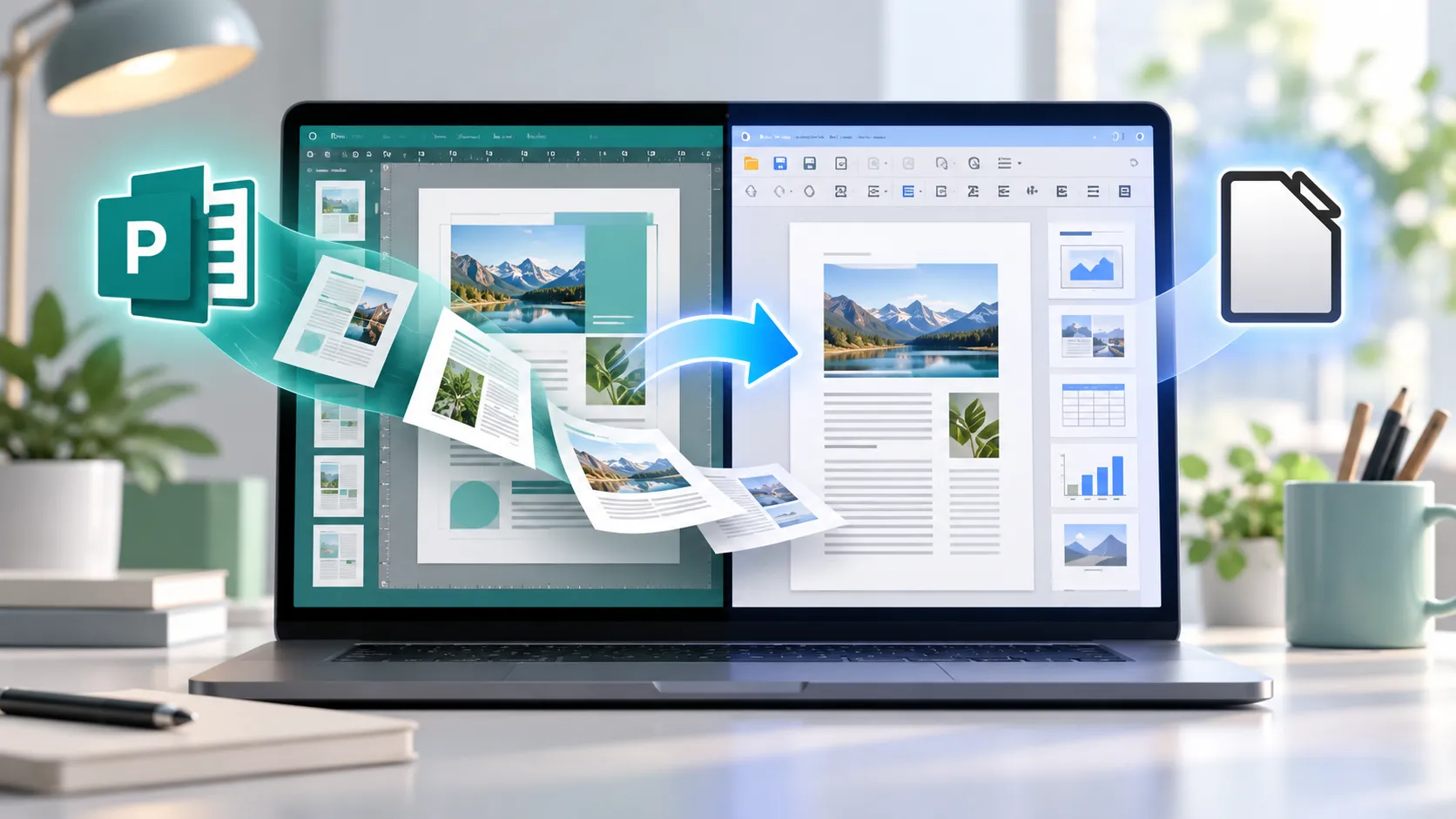
Microsoft began removing Publisher from Microsoft 365 subscriptions on October 1, 2026, with access ending on or shortly after that date as removal updates roll out. Anyone sitting on a folder of old newsletters, flyers, or brochures saved as .pub files now has one real question: can you convert Microsoft Publisher files with LibreOffice instead, and will the results actually hold up? Devaland ran 25 real .pub files through LibreOffice's free converter earlier this month and found the text survived in every file it could check against a reference copy, while the layout results depended heavily on how ambitious the original design was.
Two separate changes are happening here, and they hit different people differently. Microsoft 365 subscribers began losing access to Publisher on October 1 as Microsoft rolled out the removal updates. Standalone Publisher 2021 is a different case: an installed copy can continue opening .pub files after support ends in October 2026, but it will no longer receive security updates.
The practical split depends on what's installed on a given machine right now. If Publisher 2021 still opens a file, export anything important to PDF while that option is live, and check a Microsoft 365 subscription status or Publisher 2021 license to confirm which category applies. If Publisher no longer opens at all, LibreOffice Draw is the next thing worth testing.
LibreOffice is useful for pulling text out of a dead format and salvaging simple layouts. It is not a full free Microsoft Publisher alternative with Publisher's editing and page-design tools built in, and the rest of this article covers where that line actually falls.
Why Publisher 2021's security cutoff matters
An installed Publisher 2021 copy still opens .pub files after support ends, per Microsoft's Q&A guidance. What changes is that Microsoft no longer ships security fixes for it, a slow-building exposure rather than a sudden loss of access.
That's still a reason to act soon. Microsoft says the version will receive no further security fixes, so newly discovered vulnerabilities may remain unpatched indefinitely. The safer move for anyone with a working copy is exporting anything important to a static PDF now, while Publisher still reliably opens the originals, instead of waiting until a flaw actually surfaces.
Can LibreOffice open Microsoft Publisher .pub files? What testing found
LibreOffice's Draw component reads .pub files through a built-in library called libmspub, and it runs without any copy of Publisher installed. The test behind this article used LibreOffice 24.2, run by Devaland, the same company that sells paid document-repair services and operates its own online .pub converter.
Devaland converted 25 real .pub files and checked the results two ways. Eight files shipped with reference text describing exactly what the document was supposed to say, so Devaland could check the converted PDFs word for word. All eight came through with every expected word present, in near-identical order, scoring between 0.99 and 1.00 on a similarity measure. The remaining 17 files had no such reference, so Devaland checked them visually, page by page.
The examples showed a clear difference between simple and complex layouts. Documents built from text boxes, a basic table, and hyperlinks converted cleanly. A two-page brochure with photos and colored panels came through well too, apart from one image caption that overlapped the picture below it. A four-page newsletter built with linked, multi-column text boxes told a different story: the text was all there, but the columns overlapped badly enough that Devaland called it unusable without manual repair. A sample file from Publisher 98 kept its text but lost a table's contents entirely and swapped its Arial font for a generic serif.
LibreOffice's own file-format documentation lists Microsoft Publisher 98 through 2010 as the supported import range. Devaland's samples covered Publisher 98 through 2010-era files, so its results do not establish conversion reliability for files created in Publisher 2021 or Microsoft 365.
How to open Microsoft Publisher .pub files in LibreOffice Draw
LibreOffice is free, open source, and runs across multiple platforms, according to its own Getting Started Guide, published for the 7.3 release. That guide predates the current release by several years, so treat its interface descriptions as general reference rather than a precise match for the 2026 version. The conversion itself is straightforward, but the order of operations matters if the goal is catching problems before they become permanent.
1. Install LibreOffice and open the file through File > Open. Point it at the .pub file directly; no copy of Publisher needs to be installed anywhere on the machine. LibreOffice should load the document into the Draw component automatically. If the file doesn't open or appears blank, confirm that it is a genuine, complete Publisher file rather than relying on its .pub extension alone.
2. Save the imported document as ODG right away, before touching anything. That gives an editable baseline to fall back on if a later repair attempt goes sideways.
3. Scroll through every page and compare it against what's remembered of the original. Look for overlapping text columns, missing table contents, or substituted fonts, the exact problems Devaland's test turned up in its more complex samples.
4. Export to PDF once that check comes back clean. This is the output format Devaland's test actually measured, and it's a reasonable end state for viewing, sharing, or archiving simple, single-purpose documents.
5. Keep both the ODG file and the original .pub file regardless of how the conversion looks. PDF is less suitable for ongoing layout editing than an ODG file, so the ODG copy matters for anything that needs more work later. Don't expect it to preserve Publisher editability, though; it's a LibreOffice format, not a .pub file, and it won't reopen in Microsoft Publisher. The original .pub file stays the only exact fallback if another conversion attempt or a different tool is needed down the line.
For a browser-based option that skips the install, Devaland also runs its own converter at publisher.devaland.com, which returns a PDF and an editable ODG file with a page-by-page preview before committing to the result. It isn't made by or affiliated with Microsoft, and its claims about needing no account and deleting files after 30 minutes come from the vendor itself, so treat it as a convenient alternative rather than a verified privacy guarantee.
What to check before trusting the converted file
Conversions can fail two different ways, and neither one necessarily throws an error.
Visual checks. Before calling a conversion finished, confirm the page count matches the original document, inspect every text box and linked column for overlap or missing content, and check that tables, images, hyperlinks, and fonts all survived. Open the exported PDF as its own file to confirm it renders correctly, rather than trusting the preview inside Draw, and keep both the .pub original and the new .odg file rather than just the PDF.
Silent-failure checks. In Devaland's test, two files reported a successful conversion, complete with an exit code signaling success, but produced no PDF, no error message, and nothing at all in the output folder. Separately, three corrupted source files produced no output either, though for a different reason: those files were already damaged going in, not failures of the converter itself. A batch process trusting the success signal alone could miss both failure types without any warning. The fix is the same either way: a conversion only counts as finished once a real file exists in the output folder, opens without error, and contains the number of pages expected.
Some documents are better candidates for manual rebuilding than for another conversion attempt. Based on the sample Devaland tested, that includes documents built with linked, multi-column text boxes, anything from the Publisher 98 era, and documents that need to match the original design exactly for print or compliance reasons. These are risk categories drawn from a small sample, not a guarantee that every similar file will fail the same way, but they're worth extra scrutiny before anyone relies on the output as final.
Converting locally with desktop LibreOffice keeps a document on a single machine instead of uploading it anywhere, which matters for anything sensitive or regulated. That's not a security guarantee on its own, though. Devaland's own advice, specific to its vendor workflow, is to convert files from other people on a machine that doesn't hold anything important, keep the converter updated, and avoid running it on any server that also handles other data, guidance worth following but not independently validated here.
What to do next
If Publisher 2021 still opens a file, export what matters to PDF today, while that option is reliable. If it doesn't, run the file through LibreOffice Draw, save an ODG copy before making changes, scroll through every page, and only trust the output once a real PDF or ODG file exists on disk and opens correctly. Treat a multi-column newsletter, a Publisher 98-era file, or anything that needs to match the original design exactly as a candidate for manual repair rather than a one-click fix, and keep the original .pub file regardless of how the conversion looks.

















Comments
Be the first, drop a comment!