



Can You Restore a System Image to a New Hard Drive: Full Guide
Yes, you can restore a system image to a blank drive. The bare drive itself is not the obstacle. What determines success is whether three prerequisites are in place before you start: a system image saved to an accessible external drive, a bootable recovery USB that exists separately from that image, and a replacement drive that meets the size and firmware requirements of the original. If all three are satisfied, restoring a Windows system image to a bare drive through native Windows tools is straightforward. If anyone is missing, the process either won't start or won't produce a working system.
Be clear about what you're restoring, though. A system image is a point-in-time snapshot capturing Windows, installed applications, settings, and personal files exactly as they existed when the backup was made, partition layout included, as Microsoft Q&A explains (mid-2025). Restoring it delivers that system as it was on that date. Anything that changed after the backup was made is gone. This is not a clean install.
This article covers one specific scenario: replacing a failed or upgraded drive in the same PC, where the firmware environment hasn't changed. Restoring to materially different hardware or converting from legacy BIOS to UEFI adds complexity addressed later, but that's not the main path here.
Before you start: three things to verify right now
Run through these checks before touching any hardware. They are decision points, not formalities. Skipping them is how people end up 40 minutes into a restore with nothing to show for it.
Check 1: Do you have a system image already saved?
This article covers the restore process only. The image needs to exist first, saved to an external USB drive or an accessible network location. If it doesn't, stop here.
Check 2: Do you have separate bootable recovery media?
The system image and the boot media are two different things. A blank drive cannot start a recovery on its own; the machine needs something to boot from before it can find and apply the image. A Windows Recovery Drive (USB) or Windows installation disc fills that role.
Microsoft Support built the Recovery Drive utility specifically for this scenario, including full drive replacements, and notes it is intended for bare-metal recovery on the device it was created for (late 2024). Create the recovery drive on the machine you'll be restoring, and refresh it annually so it reflects current Windows updates. Don't discover it's outdated when a drive has already failed.
⚠ Gotcha: The Recovery Drive utility erases whatever is currently on the USB you use to create it. Use a blank drive or back up its contents first, as Microsoft Support explicitly warns (early 2024).
Check 3: Does the replacement drive match the original in size and firmware mode?
Native Windows imaging does not support restoring to a smaller drive. The process is unsupported and unreliable even with third-party software, as MyRecover notes (late 2025). Restoring to a larger drive works correctly, with leftover unallocated space you can reclaim afterward.
Firmware mode is a harder constraint. Firmware/boot-mode mismatches can prevent a successful restore or boot what the image was created on, throwing a hard error and stopping, as QilingTech documents (late 2023). For most same-PC drive replacements, this is a non-issue: the firmware hasn't changed. If you're migrating to a different machine or converting from MBR to GPT, skip to the compatibility section before proceeding.
When this is the wrong approach entirely:
You want a clean install with no legacy applications or settings carried over
Your recovery media is missing or was never created
The image was made on a different machine with different firmware
The replacement drive is smaller than the source
None of those situations is solvable through native WinRE.
What happens to your drive during the restore
The restore process formats and repartitions the target drive to match the original partition layout, then writes the full contents of the image onto it, as Microsoft Q&A explains (mid-2025). What comes back is the system exactly as it existed at backup time: every application, every setting, every file present on that date.
The restore only touches the drive or drives included in the original backup, typically just the system drive (C:). Other storage drives attached to the machine are not automatically affected, per MyRecover (late 2025). You can explicitly exclude additional attached drives during the process, but the default behavior is narrow, not sweeping.
Restoring to a larger drive works correctly, but the extra capacity won't be allocated automatically. The restore writes the partition layout it knows about and leaves the remainder as unallocated space. You'll extend the primary partition manually afterward in Disk Management.
That last point catches people off guard. The restore completing successfully and the drive appearing smaller than expected are not contradictory outcomes.
How to restore Windows system image to a bare drive: step-by-step
Have these three things ready before starting:
Replacement drive, already installed in the machine
External drive or accessible media containing the system image backup
Bootable USB Recovery Drive or Windows installation media
Step 1: Connect the drive containing your system image.
Plug in the external drive where the backup lives before the machine boots. Keep it connected throughout. The restore environment scans connected drives automatically, looking for the \WindowsImageBackup\ The folder structure Windows creates, not a manually selected file.
Step 2: Boot from your recovery media.
Insert the USB Recovery Drive or installation disc. Enter the firmware boot menu (typically F12, F2, or Delete at startup, depending on the machine) and select the USB device. Windows Recovery Environment (WinRE) will load.
⚠ Gotcha: On UEFI systems, confirm the USB is booting in UEFI mode, not legacy/CSM mode. Some machines default to legacy USB boot even on modern hardware. Make sure the recovery media is booted in the same firmware mode required by the system (typically UEFI on modern PCs), as Macrium notes (mid-2025). Booting in the wrong mode can cause the restore to fail silently or produce a system that won't start.
Step 3: Open System Image Recovery.
From WinRE, navigate to Troubleshoot → Advanced options → System Image Recovery. On some configurations, select See more recovery options first. WinRE also gives you access to Command Prompt from this same menu, which is your fallback for manual boot repair if the restored system doesn't start cleanly, per Microsoft Support (late 2024).
Step 4: Select your system image.
Windows pre-selects the most recent image it finds on connected drives. To choose a specific image or browse a non-default location, switch to Select a system image and navigate manually, as Microsoft Q&A describes (mid-2025).
⚠ If WinRE doesn't detect your image: Check three things in sequence. First, confirm the external drive is physically connected and powered. Second, verify that the recovery media is booting in the correct firmware mode, since a mode mismatch can prevent the environment from reading certain disk formats. Third, confirm the image was created by a Windows native backup and exists in the expected \WindowsImageBackup\ folder structure. Images from third-party tools use different formats and won't appear here.
Step 5: Exclude any drives you don't want overwritten.
Before confirming, use the Exclude disks option to protect any secondary storage attached to the machine. The target system drive will be formatted and repartitioned. A final confirmation prompt appears before any changes are made, giving you one last review of what will be touched, per Microsoft Q&A (mid-2025).
Step 6: Confirm and let it run.
Acknowledge the final warning. Restore time varies widely based on image size, storage speed, and hardware, per SysTools (two weeks ago). Do not interrupt power. The machine restarts automatically when finished.
⚠ If the restored system won't boot: This most often points to a boot mode mismatch. The restore completed, but the system was written for a firmware environment that doesn't match how the machine is trying to start. Boot back into WinRE from the USB, open Command Prompt, and attempt boot repair using the available repair tools. The specific commands vary depending on whether the system uses legacy BIOS/MBR or UEFI/GPT, so use WinRE's built-in repair options rather than running specific commands blindly. If that doesn't resolve it, the firmware/partition mismatch scenario in the next section applies.
Quick troubleshooting reference
Readers who arrive mid-crisis tend to scan for symptoms first. Here's the short version:
| Symptom | Most likely cause | First thing to check | |---|---|---| | WinRE doesn't detect the image | Wrong firmware boot mode, drive not powered, or non-Windows image format | Confirm USB boots as [UEFI], check external drive connection, verify \WindowsImageBackup\ folder exists | | Restore starts but fails partway through | Target drive too small, corrupted image file, or wrong recovery media | Confirm target drive capacity exceeds source, try the image on a known-working machine | | Restore completes but PC won't boot | UEFI/BIOS firmware mismatch, or boot configuration not written correctly | Boot into WinRE via USB and run boot repair; if mismatch confirmed, see the firmware section below | | Restored drive shows less space than expected | Normal behavior when restoring to a larger drive | Extend the primary partition manually in Disk Management |
After the restore: first boot steps
Verify boot success before anything else. Confirm the machine reaches the Windows login screen under its own power, without the recovery USB inserted. If it doesn't, see the boot failure note above before proceeding.
Reclaim unallocated space if you restored to a larger drive. Open Disk Management (right-click Start → Disk Management), locate the unallocated space on the restored drive, right-click the primary partition, and select Extend Volume. The space won't be usable until you do this.
Check Device Manager for hardware errors. Open Device Manager and confirm no devices show warning indicators. Particularly relevant if the replacement drive uses a different interface, or if any other components have changed since the image was created.
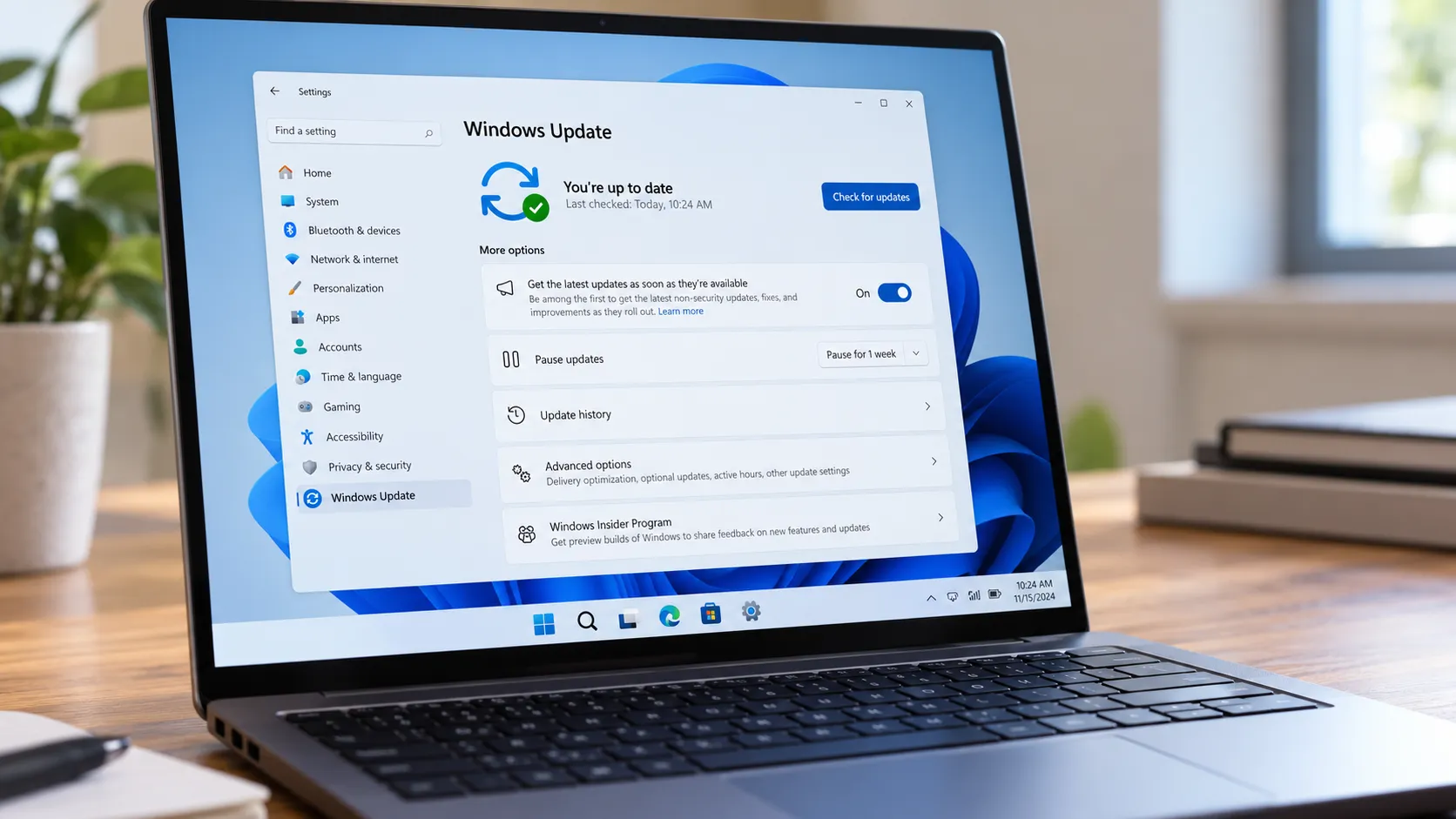
Run Windows Update immediately. The restored system reflects the state of the machine at backup time. Every patch, driver update, and security fix released since then needs to be applied. On a machine that's been out of service for months, this will take a while.
When native Windows tools hit a hard limit
Firmware and partition-mode mismatches
For same-PC drive replacements, firmware mismatch is rarely an issue because the machine's firmware hasn't changed. The problem surfaces when restoring to a different machine with different firmware, or when an older BIOS-era image needs to land on hardware that now requires UEFI. Windows refuses the restore with a hard error and no workaround through native tools, as QilingTech documents (late 2023).
Windows 11 requires UEFI firmware that is Secure Boot capable. Moving an MBR-based image to a GPT disk requires booting the recovery media in EFI mode and rebuilding the boot configuration after the restore completes, a process that native Windows does not document as a simple built-in workflow here, per Macrium (mid-2025). For this specific scenario, third-party imaging tools with dedicated MBR-to-GPT workflows are a more practical path than attempting to force it through WinRE.
A note on the Windows imaging tool itself
The "Backup and Restore (Windows 7)" tool, the only native image-creation option visible in Windows 10 and 11, is not officially recommended for creating new images on current versions. According to Microsoft Q&A (mid-2024), it remains in Windows 11 primarily to let users restore images made on Windows 7 and 8 machines.
The tool hasn't been updated since Windows 7. Ask Leo notes it may be removed from a future Windows release entirely (early 2023). That's worth sitting with for a moment: the backup tool you may have been relying on is a legacy utility on borrowed time.
The restore path covered here still works for existing images. But if this experience has prompted a review of your backup strategy, act on it now: verify your current recovery media actually boots on the target machine, confirm the image is stored on an external drive accessible without the primary system running, and evaluate a maintained third-party imaging tool for any new images going forward.
What to do next
A blank replacement drive is a workable restore target when the three prerequisites line up: matching firmware mode, adequate drive capacity, and bootable recovery media created on that machine. Microsoft Support built the Recovery Drive utility for exactly this scenario and recommends refreshing it annually to keep it current with installed updates (late 2024).
What the restore delivers is the system as it existed at backup time. Every application, setting, and file from that snapshot comes back; anything that changed afterward does not. Budget time for Windows Update and a Device Manager check once the machine is running.
Three concrete next steps:
Confirm your recovery USB actually boots on the target machine before you need it in a crisis
Keep the system image on an external drive that's accessible independent of the primary system
If you're creating new images going forward on Windows 10 or 11, switch to a maintained third-party tool rather than continuing to rely on the legacy built-in utility
The restore side of Windows still works. The creation side is on borrowed time.









Comments
Be the first, drop a comment!