



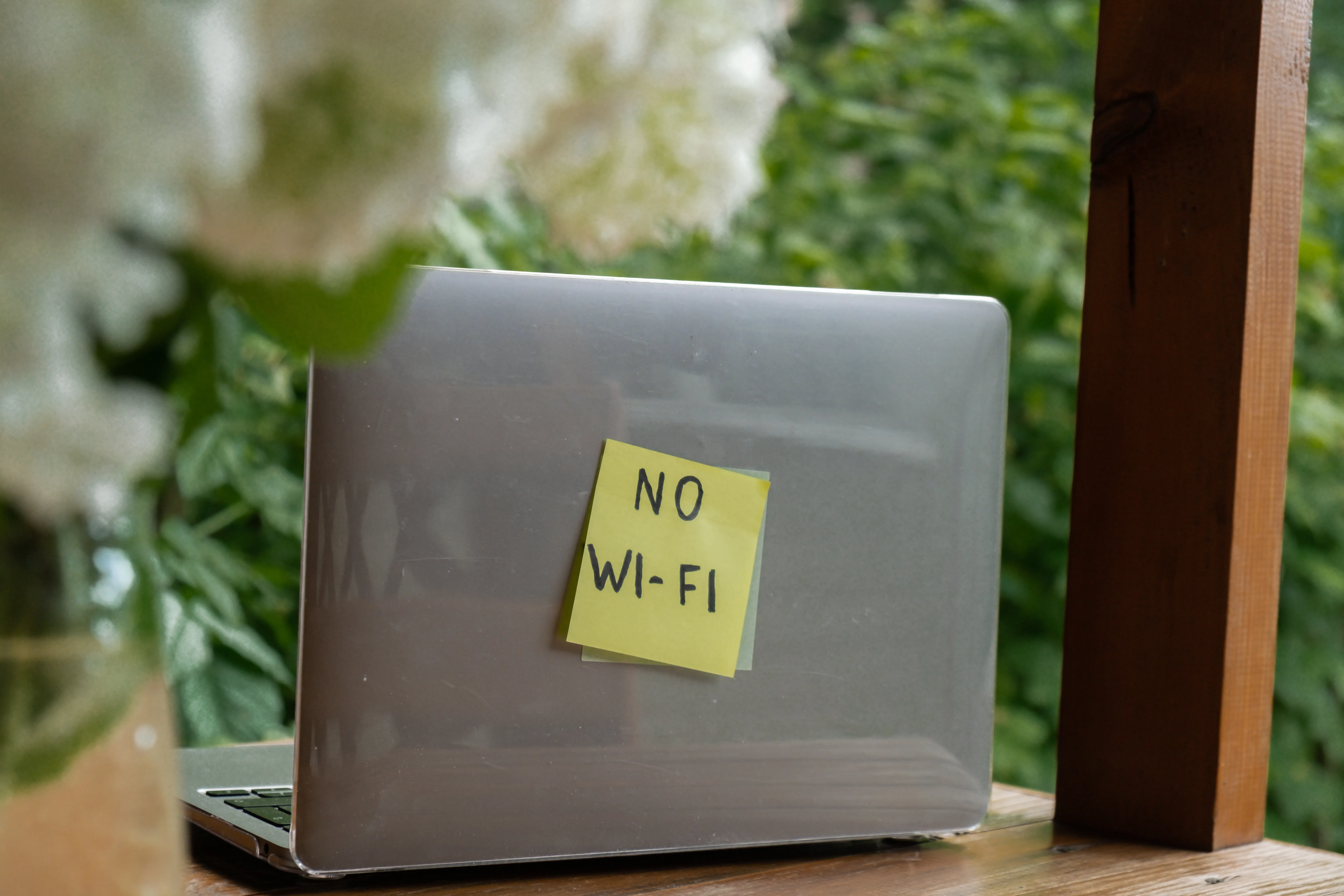
How Windows 11 Wi-Fi problems are easier to fix when you start with the symptom. A missing Wi-Fi toggle, a "No Internet, Secured" warning, random drops, and post-update connection failures all point to different causes. Use the section that matches what you see, then try the targeted fix.
Before anything else, do these two quick checks:
Open Quick Settings with Win + A and confirm Airplane mode is off and Wi-Fi is on.
Test another phone, tablet, or laptop on the same router. If nothing on the network has internet, restart the modem and router, wait a few minutes, and test again before changing Windows settings.
Have a phone or second device nearby because some commands temporarily drop the network connection. Several fixes also require local administrator access.
Jump to your symptom:
No Wi-Fi toggle or no networks appear: Go to Step 1.
Connected but no internet: Go to Step 2.
Wi-Fi keeps dropping: Go to Step 3.
Problem started after Windows Update: Go to Step 4.
Nothing has worked: Go to Step 5.
Microsoft's Windows Wi-Fi troubleshooting guide backs many of these checks, including testing another device, running network commands, checking drivers, disabling adapter power saving, and using network reset only as a last resort.
No Wi-Fi toggle or networks appear
If the Wi-Fi toggle is missing from Settings, no network names appear, or Device Manager shows the adapter with an error, the problem is probably at the adapter or driver layer. Fix that before changing DNS, proxy, or router settings.
Check the WLAN AutoConfig service
Windows uses the WLAN AutoConfig service to discover, connect to, and disconnect from wireless networks. If the service is stopped or disabled, Wi-Fi controls or available networks may not appear.
Open Command Prompt as administrator and run:
sc query WlanSvc
If the state shows anything other than RUNNING, start it:
sc start WlanSvc
Then confirm it starts automatically:
Search for services.msc and open Services.
Find WLAN AutoConfig.
Double-click it.
Set Startup type to Automatic.
Click Apply, then OK.
Check Device Manager for adapter errors
Right-click Start, select Device Manager, and expand Network adapters.
If your Wi-Fi adapter has a yellow warning icon, right-click it, select Disable device, wait five seconds, then right-click it again and select Enable device.
If the adapter is missing entirely, click Action > Scan for hardware changes. If it still does not appear, the adapter may be disabled in BIOS/UEFI, the hardware may not be detected, or the driver may need to be reinstalled.
Check Windows Update, then compare the installed driver version and date with the latest driver on your PC maker's support page. To find the installed driver, right-click the Wi-Fi adapter in Device Manager, select Properties, and open the Driver tab.
Confirm whether Windows sees the adapter
Once the adapter is visible and active, run:
netsh wlan show interfaces
This shows whether the adapter is connected, what network it is using, the signal strength, the radio type, and the channel. If networks appear after restarting the service or re-enabling the adapter, try reconnecting. If networks appear but the connection still fails, move to Step 2.
Connected but no internet
The "No Internet, Secured" message usually means your PC is connected to Wi-Fi but cannot reach the internet. That can happen because of DHCP, DNS, proxy settings, router issues, ISP problems, or a damaged network stack.
Windows checks internet connectivity by sending a small HTTP request. If it does not get a response, the No Internet icon can appear even though the PC is still connected to the local Wi-Fi network.
Read your IP address
Open Command Prompt as administrator and run:
ipconfig
Look for the IPv4 Address under your Wi-Fi adapter.
If it starts with 169.254, Windows did not get a usable address from the router. Restart the router first. If the same address returns, log in to your router and check whether DHCP is enabled. If many devices use the same router, also check whether the DHCP address pool is full. The router address and DHCP settings vary by brand, so use the router app or manual instead of assuming one default address.
If the address looks normal, such as 192.168.x.x, the connection to the router is probably working. Continue with the reset commands below.
Reset the network stack
Open Command Prompt as administrator and run these commands one at a time:
netsh winsock reset
netsh int ip reset
ipconfig /release
ipconfig /renew
ipconfig /flushdns
Restart after the last command, then test the connection again.
Do not run these commands over Remote Desktop or a screen-sharing session. ipconfig /release can drop the connection immediately, so you need physical access to the keyboard.
Try a different DNS server
If websites still will not load, DNS may be the problem. Go to Settings > Network & internet > Wi-Fi > Hardware properties > DNS server assignment, then click Edit.
Switch to Manual, turn on IPv4, and enter a trusted public DNS provider. For example:
Preferred DNS: 1.1.1.1
Alternate DNS: 8.8.8.8
Save the change, then try loading a few websites. If the connection works after the change, your previous DNS server was likely part of the problem.
Check proxy and VPN leftovers
Go to Settings > Network & internet > Proxy. If Use a proxy server is on and you did not set it intentionally, turn it off.
Then open Device Manager > Network adapters and look for leftover VPN adapters, such as TAP or TUN adapters from old VPN software. If you recently uninstalled a VPN and internet access broke afterward, uninstall the leftover adapter, restart, and test again.
Check random hardware addresses
Windows 11 can use random hardware addresses for Wi-Fi privacy. If your router uses MAC address filtering, the router may block the randomized address.
Go to Settings > Network & internet > Wi-Fi, select your network, then find Random hardware addresses. Turn it off for that network or add the randomized address to your router's allowed list.
Wi-Fi keeps dropping
Intermittent disconnects usually come from one of four places: weak signal, router interference, adapter power saving, or a driver problem. Start with the Windows-side checks below, then move to the router or physical setup if the problem continues.
Check your adapter and driver version
Open Command Prompt as administrator and run:
netsh wlan show drivers
Note the adapter name, driver version, and driver date. If the problem started recently, compare those details with the latest wireless driver on your laptop maker's support page.
For Intel adapters, check your PC maker's support page first, then Intel's wireless driver page if the OEM driver is outdated.
Disable Wi-Fi power saving
Open Device Manager, expand Network adapters, right-click your Wi-Fi adapter, and select Properties.
If you see a Power Management tab, open it and uncheck Allow the computer to turn off this device to save power. Click OK, restart, and test the connection again.
If you do not see that tab, skip this step. Some adapters hide or remove this option depending on the driver.
Adjust roaming behavior only when it fits the symptom
Some adapters expose a Roaming Aggressiveness setting in Device Manager. This setting controls how quickly the adapter looks for a stronger access point.
Use this only if your laptop drops Wi-Fi while moving between rooms or access points:
Open Device Manager.
Expand Network adapters.
Right-click your Wi-Fi adapter and select Properties.
Open the Advanced tab.
Select Roaming Aggressiveness if it appears.
Set it to Medium or Low.
Restart and test again.
If the setting is not available, leave it alone and continue troubleshooting.
Check signal and router conditions
If the drops happen only in one room, near certain appliances, or far from the router, Windows is probably not the main cause. Move closer to the router and test again.
Also try switching between the 2.4 GHz and 5 GHz versions of your network if your router broadcasts both. The 2.4 GHz band usually reaches farther, while 5 GHz is often faster at shorter range.
Wi-Fi broke after a Windows update
If Wi-Fi broke immediately after Windows Update ran, check update history before changing router settings. A recent update can change drivers or network components, but that does not mean every connection problem after an update was caused by the update.
Go to Settings > Windows Update > Update history and note the most recent quality update and driver update. Then check Microsoft's Windows 11 release-health page for your Windows version.
As of Microsoft's July 6, 2026 update to the Windows 11 25H2 release-health page, the listed known issues did not include a broad Wi-Fi or Ethernet outage.
Check for a driver change
Open Device Manager, expand Network adapters, right-click your Wi-Fi adapter, select Properties, and open the Driver tab.
If the driver changed around the same time the Wi-Fi problem started, download the current wireless driver from your PC maker's support page. Use the exact model number of your laptop or desktop.
If the PC cannot access the internet, use your phone as a USB hotspot or download the driver on another device and copy it over with a USB drive.
Roll back only when the evidence points there
If Microsoft or your device maker confirms a related issue, use Settings > Windows Update > Update history > Uninstall updates or the driver rollback option in Device Manager.
To roll back a driver, open Device Manager, right-click the Wi-Fi adapter, select Properties, open the Driver tab, and choose Roll Back Driver if the button is available.
Restart after the rollback and test again.
Use network reset only as a last resort
Use network reset only after the targeted fixes fail. Network reset removes installed network adapters and their settings, then reinstalls the adapters after your PC restarts. You may need to reinstall VPN software or virtual switches afterward.
Before you start, write down your Wi-Fi password and any VPN details you need.
To run network reset:
Open Settings.
Click Network & internet.
Click Advanced network settings.
Under More settings, click Network reset.
Click Reset now.
Click Yes to confirm.
Wait for Windows to restart.
Reconnect to Wi-Fi and enter your password.
If the same problem returns after network reset, stop repeating Windows fixes and check the router, signal, ISP, or hardware.
When the problem is not Windows
A few clues point away from Windows:
Multiple devices on the same network lose internet.
The problem happens only far from the router.
Wi-Fi drops in the same room or corner of the house.
The adapter disappears from Device Manager after driver reinstall attempts.
Both update rollback and network reset fail.
A USB Wi-Fi adapter works normally while the built-in adapter still drops.
For a deeper look, generate a wireless report:
netsh wlan show wlanreport
Windows saves the report in:
C:\ProgramData\Microsoft\Windows\WlanReport\
Open the latest HTML report and look for repeated disconnects, low signal, authentication failures, or adapter errors.
At that point, the likely causes are outside Windows: the router, the internet service provider, wall or distance interference, channel congestion, or failing Wi-Fi hardware.






Comments
Be the first, drop a comment!