




If you've ever walked away from your desk and wondered whether your PC is still unlocked, your phone can help — but the best method depends on the phone you use.
Android users with a paired Windows 11 PC may see a Lock PC button inside the Link to Windows app. iPhone users do not get that same in-app control, but they can still lock a Windows PC from a browser with Microsoft's Find my device tool or use Dynamic Lock for automatic proximity-based locking.
Microsoft first previewed the refreshed Link to Windows experience for Android on July 24, 2025, with remote PC locking, file sharing, screen mirroring, recent activity, and PC battery/Wi-Fi status. The feature later appeared more broadly in December 2025, when Windows Central reported that the Lock PC button had rolled out to more users through recent Link to Windows updates.
One limitation is worth knowing before you start: this is a lock tool, not an unlock tool. Your phone can lock the PC, but it cannot get back in. To unlock the machine, someone still needs to authenticate at the PC with a password, PIN, or Windows Hello.
Before you start: what works on Android and iPhone
For the in-app Lock PC button, this is Android-only. Microsoft's iPhone Phone Link support covers calls, texts, contacts, and notifications, but Microsoft does not list the Android remote PC controls for iPhone.
App versions also matter. Microsoft's July 2025 preview required Phone Link 1.25062.83.0 or later on the Windows PC and Link to Windows 1.25071.155 or later on Android. Later coverage found the Lock PC button appearing with Link to Windows 1.25071.165, with a Dec. 8, 2025 update bringing the app to 1.25102.140.0.
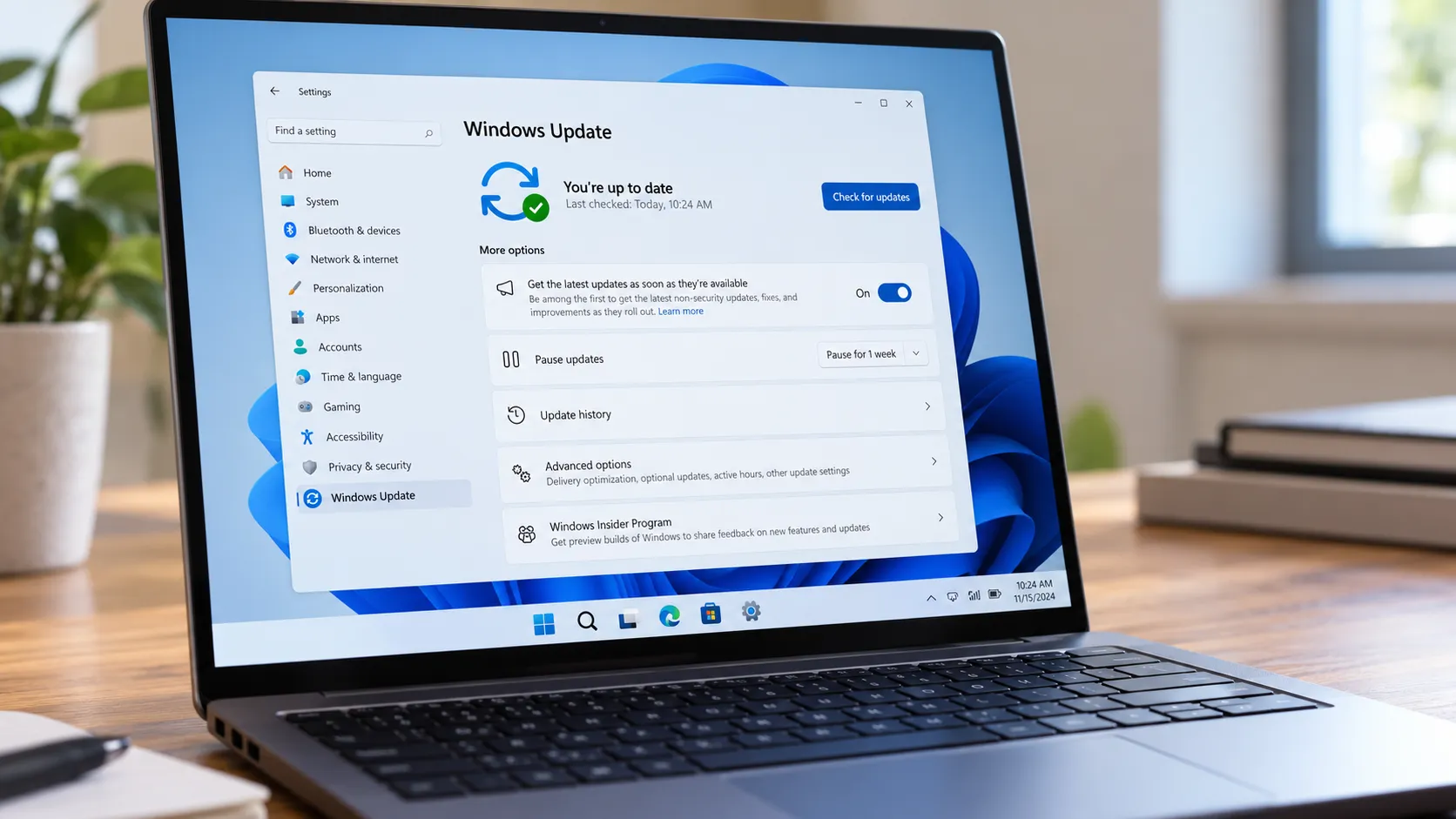
Before troubleshooting, update both apps: Phone Link from the Microsoft Store on your PC and Link to Windows from Google Play on your Android phone.
You also need the same Microsoft account on both devices, and the phone and PC need to be connected. Unlike Dynamic Lock, the Link to Windows Lock PC button is a manual remote action, not a Bluetooth proximity trigger.
How to lock Windows from Android with Link to Windows
Step 1: Turn on the Windows-side settings
Do this once while you are at the PC.
Open Phone Link from the Start menu. If it is not installed, get it from the Microsoft Store.
Select the gear icon to open Settings.
Look for the app behavior or startup setting and enable Phone Link to start when you sign in to Windows.
Go to Settings > Bluetooth & devices > Mobile devices.
Make sure Allow this PC to access your mobile devices is turned on.
Open Manage devices and confirm that your Android phone appears and is enabled.
Phone Link is the Windows app. Link to Windows is the phone-side app. You need both sides of the connection working before the Lock PC button can appear on Android.
Step 2: Pair your Android phone
Install or update Link to Windows from Google Play.
Open the app and sign in with the same Microsoft account you use on the PC.
Follow the pairing prompts.
Once connected, open the device view for your paired PC.
Look for the Lock PC button.
Microsoft says the refreshed setup can start from the Android phone, but pairing still involves the PC. If the phone does not appear under Windows' Mobile devices settings, finish the Windows-side setup before testing the lock button again.
Step 3: Tap Lock PC
Open Link to Windows on the Android phone.
Tap your paired Windows PC.
Tap Lock PC.
Confirm the action if prompted.
The PC should lock and show the Windows sign-in screen. The phone cannot unlock it afterward; the next person at the machine still needs the password, PIN, fingerprint, face recognition, or another local sign-in method already set up on the PC.
Why the Lock PC button may be missing
If the button does not appear, start with the basics.
First, update both apps. Older builds may not include the new device view or Lock PC button.
Second, check the Windows-side mobile device settings. Go to Settings > Bluetooth & devices > Mobile devices, then confirm that your Android phone is listed and enabled.
Third, disconnect and pair again if the phone was linked before the feature reached your device. A stale pairing can keep the updated Android app from showing the newest controls.
If those checks pass and the button still is not there, the feature may not have reached your device or account yet. Use Find my device while you wait.
iPhone users: use Find my device or Dynamic Lock
iPhone users do not get the same Lock PC button inside Link to Windows. The most reliable remote option is Microsoft's browser-based Find my device tool, which can lock a Windows 10 or Windows 11 PC from your Microsoft account.
There are limits. Find my device must be turned on before you need it, the Windows device must be tied to a Microsoft account with administrator access, and the PC needs to be online with enough battery to report its location. Microsoft also says Find my device does not work with work or school accounts.
To check the setting on the PC, go to Settings > Privacy & security > Find my device in Windows 11.
To lock the PC from a browser:
Go to your Microsoft account's devices page and sign in.
Open the Find My Device tab.
Select the Windows PC you want to locate.
When the device appears on the map, select Lock > Next.
This is the better option when you are using an iPhone, borrowing someone else's phone, or dealing with a PC you may not return to quickly.
Use Dynamic Lock when you want automatic locking
Dynamic Lock is the built-in Windows option for people who want their PC to lock automatically when their phone moves out of Bluetooth range. It works differently from Link to Windows: you do not tap a remote button, and it is not Android-only.
To set it up:
Pair your phone to the PC over Bluetooth.
On the PC, go to Settings > Accounts > Sign-in options.
Find Dynamic Lock.
Allow Windows to lock the device when you are away.
Dynamic Lock is useful if you often step away from your desk and carry your phone with you. It is less useful if you leave the phone beside the PC, keep Bluetooth off, or need an immediate manual lock from another location.
The fastest option for each situation
If you have an Android phone, a paired Windows 11 PC, and the Lock PC button is visible, use Link to Windows > Lock PC. If you are on iPhone, borrowing someone else's phone, or using an unpaired phone, use Find my device from your Microsoft account. If you want the PC to lock automatically when you walk away, set up Dynamic Lock instead. If the Lock PC button is missing but the PC is online, use Find my device while you troubleshoot the Android setup.
Which method should you use?
If you have an Android phone and the Lock PC button is visible, Link to Windows is the fastest option: open the app, tap your PC, and lock it.
If you are on iPhone, do not spend time looking for the same button. Use Find my device for remote locking from a browser, or set up Dynamic Lock if you want Windows to lock automatically when your phone leaves Bluetooth range.
None of these replaces the fastest habit of all: press Windows + L before you walk away. The phone tools are backup options for the moment you forget.


Comments
Be the first, drop a comment!