



How to Perform an Internet Speed Test in Windows 11: 2 Methods
Windows 11 now has a speed test option built directly into the taskbar. Added this month as part of the March 2026 cumulative update, it gives you a one-click path to check your internet speed on Windows 11 without hunting for a website. That said, knowing how to perform an internet speed test in Windows 11 also means understanding what the feature actually is: it's a browser shortcut to Bing, not a native network diagnostic tool. The Ookla engine behind it is solid, but the results are only as useful as the conditions you test under.
This guide covers two working methods for running a Windows 11 internet speed test, what to do when the taskbar option doesn't appear, and how to read the three numbers you get, including which metric matters for which problem.
Before you start: setup, caveats, and whether the taskbar option will appear
A few things to check before running any test.
First, confirm the PC is actually online. If the network icon in the taskbar shows a disconnected state or an X, the "Perform speed test" entry may not appear, and any result you did get would be meaningless. Resolve the connectivity issue before testing.
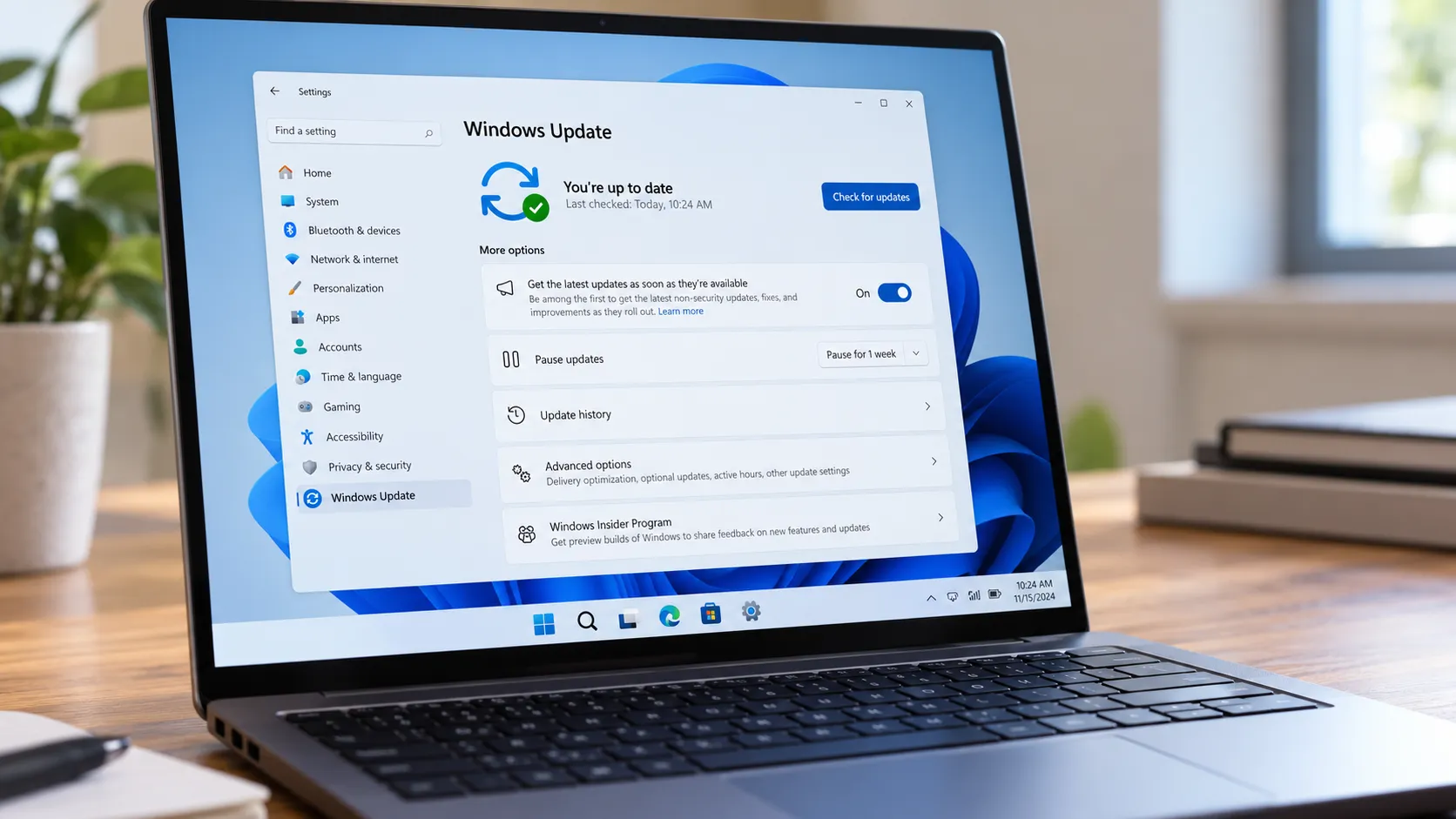
The taskbar option requires the March 2026 update. Specifically, the KB5077241 feature payload or the March Patch Tuesday rollup must be installed, as msftnewsnow reported this month. Older builds won't show the entry. If it's missing, go to Settings > Windows Update, check for pending updates, install them, and restart.
Managed and enterprise devices are a separate case. IT policy can suppress the taskbar option or delay the update entirely, per msftnewsnow. If the entry is absent on a work PC after updating, that's the most likely explanation. Skip to Method 2 and use a browser-based tool instead.
Two other things to do before any test, regardless of method:
- Disable any active VPN. Tunneling overhead reduces measured throughput, and the result will reflect VPN performance rather than your actual ISP connection.
- All methods here measure throughput between your PC and a remote server. If the problem is slow speeds between two devices on the same local network (file transfers, NAS access), that's a different diagnostic problem outside the scope of this guide.
How to perform an internet speed test in Windows 11 from the taskbar
This is the fastest path if the March 2026 update is installed.
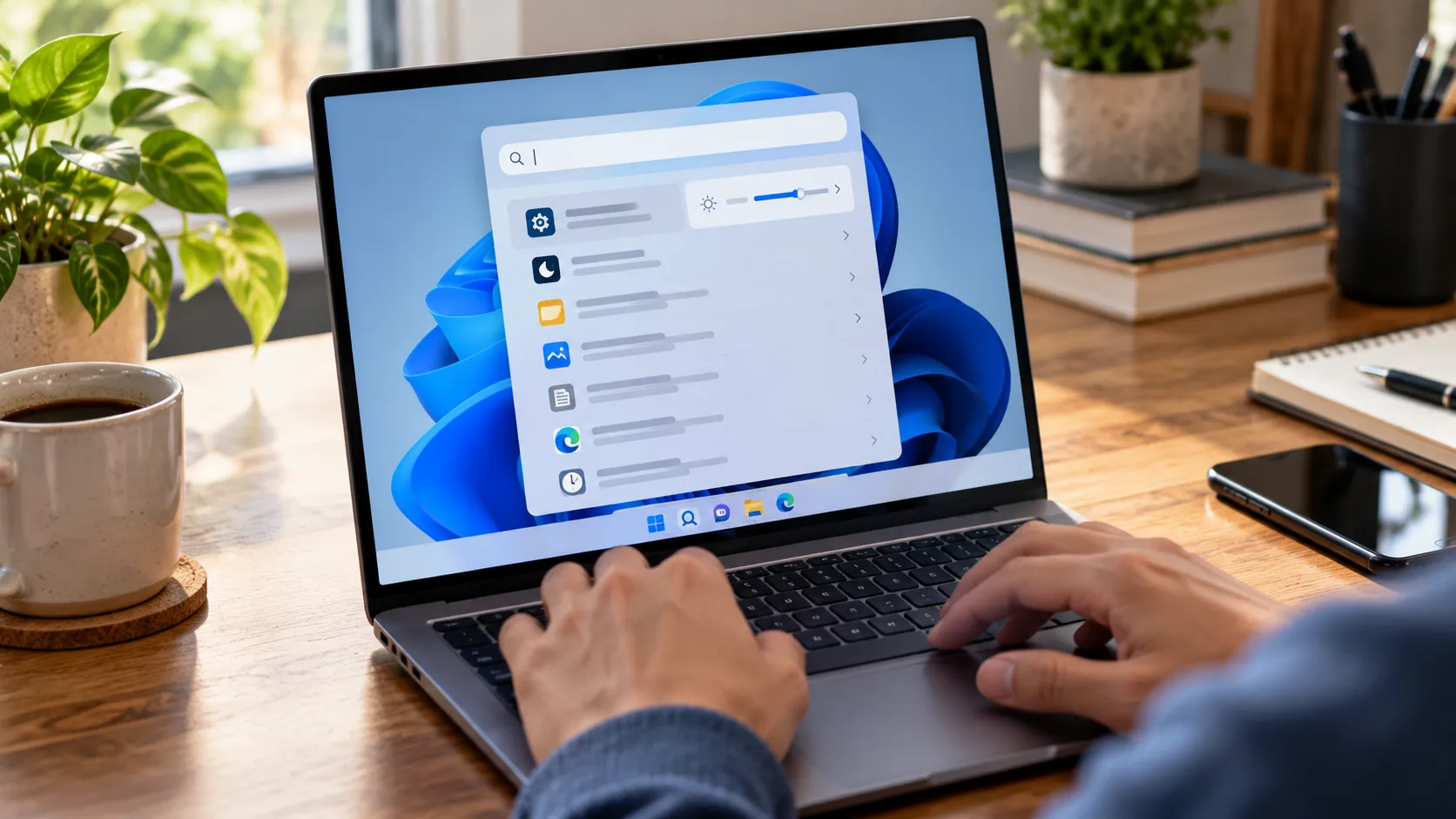
Step 1: Right-click the network icon in the system tray, in the bottom-right corner of the taskbar. With the update installed, the context menu includes a "Perform speed test" entry, as WindowsLoop confirmed this month.
Alternative entry point: Click the network/volume/battery cluster in the taskbar to open Quick Settings. The same "Perform speed test" button appears there under the Wi-Fi or cellular tile, per msftnewsnow.
Step 2: Select "Perform speed test." Windows opens a Bing page in the default browser, with the speed test query pre-filled. This is a browser shortcut, not a Windows built-in speed test; the distinction matters if you're expecting a native diagnostic.
Step 3: Click "Start" on the Bing page. The test runs automatically and finishes in under a minute. The page loads with ads around the test widget, but these don't affect the results.
Step 4: Read the three results: ping in milliseconds, download speed in Mbps, upload speed in Mbps, per WindowsLoop. Click "Rerun" to run the test again without reloading the page.
Step 5: Run it at least twice and compare readings. A single result can reflect a momentary dip or spike; two consistent results give you something meaningful to act on.
One practical note: the Bing page is ad-heavy. The underlying engine is Ookla's Speedtest backend, per msftnewsnow, the same one used by speedtest.net directly. If the cluttered interface is a concern, Method 2 puts you on that same engine in a cleaner wrapper.
Method 2: Browser-based alternatives Speedtest by Ookla and Fast.com
These options work on any Windows 11 build, on managed devices, or whenever a cleaner experience is preferable.
Speedtest by Ookla (speedtest.net)
- Navigate to speedtest.net in any browser.
- Click the "Go" button. Speedtest selects a test server by pinging local options and choosing the one with the lowest latency rather than the nearest geographic location, a design choice that tends to produce more accurate results, as ZDNET noted last month.
- Wait for the test to complete, typically under two minutes. Results include download speed, upload speed, and latency, plus a breakdown showing how the connection performs across specific use cases: gaming, streaming, browsing, and video calls, per ZDNET.
- Click "Results" in the top-right corner to review your test history. Useful when you want to confirm whether low performance is a recurring pattern across multiple sessions rather than a one-off.
Fast.com (by Netflix)
- Type fast.com in the browser address bar and press Enter.
- The test starts automatically on page load, no button click required, and displays download speed immediately, per WindowsLoop.
- Click "Show more info" to reveal upload speed and latency.
Choosing between them: The taskbar shortcut is the fastest option for a quick check, provided the March 2026 update is installed. Speedtest.net is a direct interface to the same Ookla engine and adds historical tracking. Fast.com is the most minimal, useful when download speed is all you need and you want results in seconds.
If the result looks wrong
Got a number that seems off? Work through this before drawing conclusions.
Low on Wi-Fi but fine on Ethernet: The issue is almost certainly local Wi-Fi, not your ISP. Walls, distance from the router, and interference from nearby devices all suppress Wi-Fi throughput in ways that have nothing to do with your plan, as ZDNET noted last month. Move closer to the router or run the test over a wired connection to isolate the cause.
Low only with a VPN active: Expected behavior. VPN tunneling adds overhead that reduces measured throughput. The result reflects VPN performance, not your ISP connection. Disconnect the VPN and retest.
Low across multiple wired tests at different times of day: This is the scenario worth acting on. Compare the numbers against the speeds listed in your ISP plan. As a practical rule of thumb, a consistent shortfall across repeated Ethernet tests, particularly at off-peak hours, is a reasonable basis for contacting your provider. A single low result on a congested Wi-Fi network is not.
How to get accurate results and what to do with them
Running the test is straightforward. Getting a reading you can trust takes a bit more preparation.
Conditions that affect accuracy
Use a wired Ethernet connection where possible. Wi-Fi results can be suppressed by physical obstructions, distance from the router, and interference from nearby devices, all of which look like ISP problems but aren't, per ZDNET. An Ethernet connection removes those variables from the equation.
Before testing, close other applications and pause background activity. Active downloads, cloud backups, and streaming services running on the same machine compete for bandwidth and will pull numbers down, per ZDNET. Disconnect other devices from the network if possible; smart TVs and gaming consoles both consume bandwidth even when idle.
Consider restarting the router first. A reboot clears temporary memory and can resolve performance issues with no obvious external symptoms, per ZDNET.
Run the test three times and average the results. Network conditions fluctuate. One low result doesn't confirm a problem; consistently low results across multiple tests at different times of day do.
What the three numbers actually mean
-
Ping (ms): Round-trip time to the test server. This number matters most for gaming and video calls. Under 20ms is excellent; above 100ms produces perceptible lag in real-time communication and online games.
-
Download speed (Mbps): How fast data moves from the internet to your PC. This affects streaming quality, page load times, and file downloads. For context, Netflix recommends 15Mbps for HD streaming. If download speed is well below your plan's advertised tier on a wired connection, that's worth investigating.
-
Upload speed (Mbps): How fast data travels from your PC to the internet. This matters for video calls, live streaming, cloud backups, and sending large files. Upload speeds are typically lower than download on residential connections; that asymmetry is by design, not a fault. What matters is whether upload is consistently far below what your plan advertises.
What to do next
The taskbar shortcut added in the March 2026 update (KB5077241) is genuinely convenient for a quick check. If it's there, use it. If the number looks plausible, you're done. If something seems off, that's when method and conditions matter: test on Ethernet, close background apps, run it more than once, and compare the result against what your ISP plan actually promises.
The taskbar option routes through Bing rather than running as a native Windows tool, and it won't appear on older builds or some managed devices, per msftnewsnow. For those situations, speedtest.net gets you to the same Ookla engine directly. Each metric has a specific job: ping for gaming and calls, download for streaming and browsing, upload for video conferencing and backups. Knowing which number corresponds to your actual problem is what makes the test useful rather than just a set of figures to screenshot and forget.
One final boundary: these methods measure internet throughput between your PC and the outside world. Slow speeds between two devices on your home network are a separate problem, and require a different set of tools.








Comments
Be the first, drop a comment!