



Compress to ZIP File Not Working in Windows 11: Fix Guide
Right-click a file in Windows 11, click "Compress to ZIP file," and instead of an archive appearing, you get an "open with" prompt asking you to pick an app. That's the problem this guide fixes and if compress to ZIP file not working on Windows 11 is your situation, you'll find the fix here whether the command is misbehaving, disappeared after a recent update, or never worked on your current installation.
While you troubleshoot: Right-click your files, choose "Send to," then "Compressed (zipped) folder." This alternate path often still works when the main context-menu command does not. Or open PowerShell and run Compress-Archive against any file path. ZIP support itself isn't broken an ElevenForum user dealing with this in early 2024 confirmed they could still open and extract ZIP files normally while the compress command failed.
Two things worth knowing before you start:
- Running DISM and SFC is a reasonable first instinct, but it may not help here. One ElevenForum user ran both with clean results and still had a broken compress command shell registration problems don't always surface as system file errors.
- System Restore and automatic PC repair may not help either. A user on Microsoft Answers had already tried both before posting; neither resolved the "open with" symptom.
Find your situation:
| What you're seeing | Where to go |
|---|---|
| The option appears but shows an "open with" prompt | Step 2 |
| The option is completely missing after a recent update | Step 1 first |
| You have 7-Zip, WinRAR, or NanaZip installed | Step 2, Fix B |
| The problem started after a 24H2 upgrade | Step 1 first |
Step 1: Rule out the 24H2 menu change before troubleshooting
Windows 11 changed how ZIP compression works with the 24H2 update. On 23H2, right-clicking a file shows "Compress to ZIP file" directly in the context menu one click, done. On 24H2, that label was replaced: you now right-click, choose "Compress to," select "Additional options," pick ZIP as the archive format, set a compression method, and click Create (Pureinfotech, updated mid-2024). If you upgraded to 24H2 and the familiar label disappeared, the command moved rather than broke.
Check your build: Go to Settings → System → About and look at the OS build number.
Also check "Show more options": Windows 11 collapses older context menu entries, including entries from third-party archive tools, under a secondary menu. If you're looking for a label that existed before an update, it may be hidden there rather than gone (How2Shout, last year).
If neither of those explains it: After the July 2024 cumulative update (KB5040442), some ElevenForum users reported that the release notes promised a new "Compress to" option, but their machines showed no change. Forum reports suggest which label appears can vary by build state. If the command is present but broken rather than absent, the fix is in Step 2.
Checkpoint: If the 24H2 path now works for you, you're done. If not, continue.
Step 2: How to restore the Compress to ZIP file option identify the cause first
The "open with" symptom comes from a broken connection between the compress command and Windows' ZIP shell handler. Two distinct things can break that connection, and the fix differs depending on which one you have. Don't reinstall your archive tool until the native command works again.
Likely Cause A The .zip file association is damaged
A community responder on Microsoft Answers last year described the symptom as the system having "lost .zip file association to File Explorer," and asked whether a third-party archive tool had previously been associated which points toward Cause B.
How to confirm: Go to Settings → Apps → Default apps, search for .zip, and check what's listed. If anything other than File Explorer appears, or the entry looks incomplete, this is likely your cause. If File Explorer is already the default, the problem is deeper than the Settings screen shows.
Likely Cause B A third-party archive tool is interfering
Archive tools like 7-Zip, WinRAR, and NanaZip can add shell integrations that conflict with Explorer's native ZIP handler, even when the third-party tool has never been set as the .zip default. An ElevenForum user in early 2024 had 7-Zip installed but had never manually associated it with .zip; the native compress command failed while 7-Zip itself worked fine. Community advice in that thread was to treat the tool's shell hooks as the likely cause until testing proved otherwise.
How to confirm: You have at least one archive tool installed. The native "Compress to ZIP file" fails with the "open with" prompt, but the third-party tool compresses files normally.
A less common third possibility context menu rendering corruption: Users in a NanaZip GitHub thread from late 2024 reported context menu corruption on Windows 11 24H2 that appeared with both NanaZip and WinRAR installed; one commenter noted it was "probably a system error" rather than specific to any single app. One user reported the issue cleared after updating to build 26100.5074, though that's a single report. If multiple context menu items are affected not just the ZIP command check for pending Windows updates before doing anything else.
Step 3: Apply the fix
Fix A Reset the .zip default (no third-party tools involved)
- Open Settings → Apps → Default apps, search for
.zip, and set File Explorer as the handler if it isn't already. - Open Task Manager (Ctrl + Shift + Esc), find Windows Explorer under Processes, right-click it, and select Restart.
- Test: right-click a file and try "Compress to ZIP file."
If that doesn't resolve it: One ElevenForum user in early 2024 had File Explorer showing as the correct default and the command still failed. The next step, recommended by forum members, is to run the default file-type reset .reg file for ZIP from ElevenForum's file type association tutorial find the ZIP entry in the table and run its reg file. Community reports suggest this resets the ZIP registration more thoroughly than the Settings screen allows. Reboot after applying.
Checkpoint: If the compress command creates a ZIP without prompting after rebooting, you're done.
Fix B Remove the third-party archive tool and restore clean ZIP registration
This sequence comes from community troubleshooting on ElevenForum from early 2024. Follow the steps in order.
- Uninstall your archive tool through Settings → Apps → Installed apps.
- Reboot.
- Test the compress option before reinstalling anything. If it works, the tool's shell integration was the cause.
- If it still doesn't work: the ElevenForum thread suggests using Revo Uninstaller Free to scan for leftover registry entries and File Explorer hooks that a standard uninstall may not catch. Run its "scan for leftovers" option, then reboot.
- Download and run the default ZIP association
.regfile from ElevenForum's file-type reset tutorial to reset the ZIP registration. - Reboot and test again.
Checkpoint: If the compress command works, you can reinstall your archive tool. When you do, don't associate it with .zip files during or after installation keep File Explorer as the .zip handler to reduce the risk of recurrence.
If your tool is WinZip specifically: Before going through a full uninstall, try the Repair option first. Go to Control Panel → Programs and Features, find WinZip, click Modify, and choose Repair. According to How2Shout (last year), the repair wizard re-registers WinZip's shell extensions and resolves missing context menu entries in many cases. If it doesn't fix the native Windows ZIP command, proceed with the full uninstall sequence above.
If nothing has worked: repair install
If you've run the association reset and cleaned up any third-party tools and the command still triggers an "open with" prompt, targeted fixes have likely hit their limit. A Windows repair install sometimes called an in-place upgrade reinstalls Windows system files while leaving your personal data and applications in place, according to community guidance in the ElevenForum thread from early 2024, which identifies this as the appropriate escalation once association resets and tool removal have both failed.
When you run the repair install, use Option Two. Option One applies only to Insider Preview builds and won't appear on a standard consumer installation, as noted in that same thread.
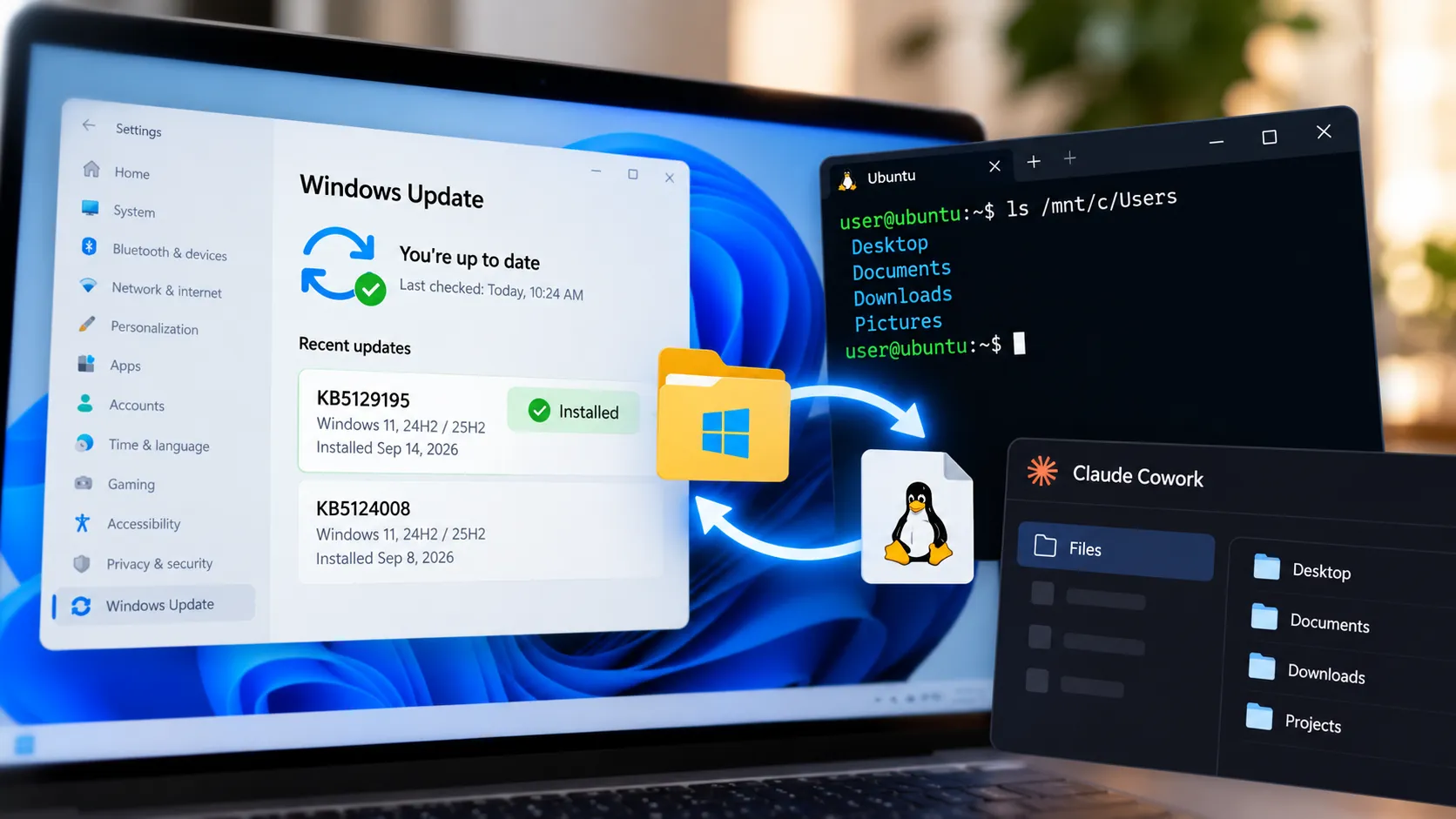
Before starting, go to Settings → Windows Update and install any pending updates. One user in the NanaZip GitHub thread from late 2024 reported their context menu issues cleared after a Windows update rather than a repair install worth checking first, since it's the shorter path.
Final checkpoint: After the repair install completes, test the compress command before reinstalling any archive tools. If it works cleanly, reinstall tools one at a time and test after each to catch any recurrence early.







Comments
Be the first, drop a comment!