





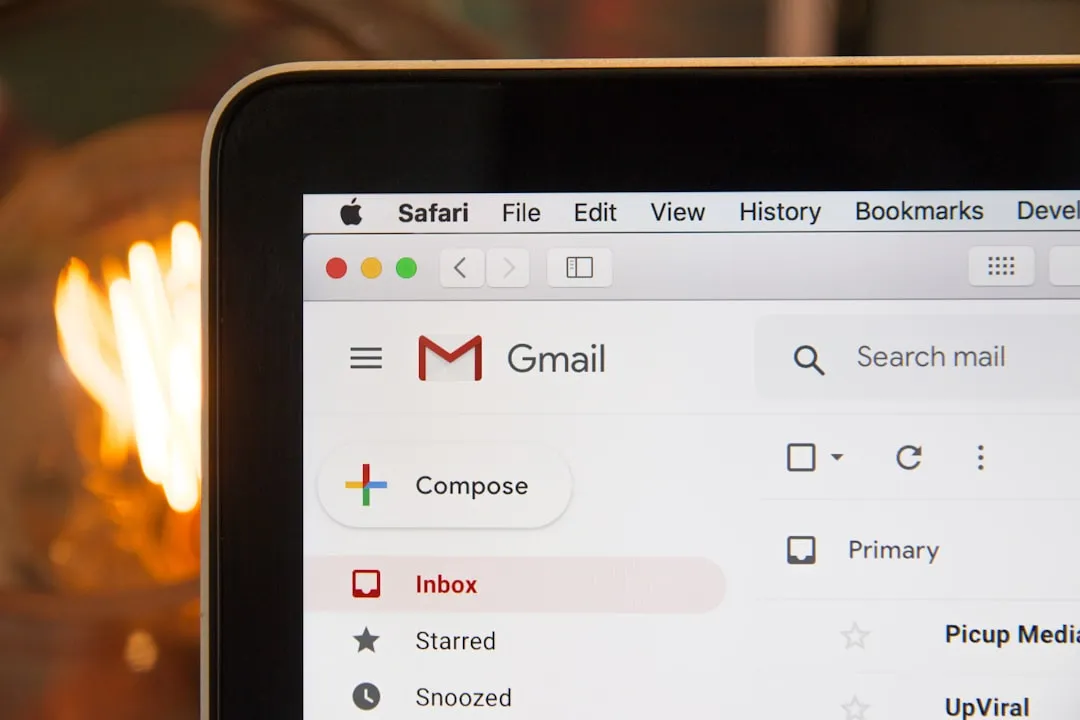
The sudden inability to access Gmail through Outlook 2024 on Windows 11 has caught many users off guard, transforming what should be a routine email check into a frustrating authentication maze. This isn't just another minor glitch—it's a symptom of broader changes happening behind the scenes with how major email providers handle security and authentication protocols.
When your email client suddenly stops working with a service you've used for years, it's rarely about a simple password mix-up. The reality is that both Microsoft and Google have been quietly tightening their security requirements, often leaving users scrambling to understand why their previously reliable setup has stopped functioning. Let's break down what's actually happening and, more importantly, how to get your email flowing again.
Why your Gmail suddenly stopped playing nice with Outlook
Here's what you need to know: the core issue stems from authentication protocol changes that major email providers implement to enhance security. Google has been particularly aggressive about phasing out less secure authentication methods through their Basic Authentication deprecation policy, which can leave older configurations completely inoperable.
When Outlook 2024 tries to connect using outdated authentication protocols, Gmail's servers essentially slam the door shut. It's not personal—it's Google's way of protecting your account from potential security threats that exploit weaker authentication methods.
Two-factor authentication settings create an additional security layer that fundamentally changes how third-party applications like Outlook must authenticate. If you've recently enabled 2FA on your Google account (or if Google prompted you to do so), your standard password alone won't cut it anymore. The system now requires either an app-specific password or proper OAuth 2.0 token authentication.
This is where many users hit their first roadblock: Modern Outlook versions are designed to use OAuth 2.0 for Gmail connections, but the handshake between Microsoft's client and Google's servers can get confused during the transition. This confusion multiplies when account settings have been migrated from older Outlook versions or when Windows 11 updates interfere with stored credentials.
PRO TIP: Check your Google Account's recent security activity to see if authentication attempts are being flagged as suspicious—this often reveals whether the issue is credentials or security blocking.
Getting your credentials and security settings sorted
App passwords represent your most direct solution when 2FA is enabled on your Google account. Unlike your regular Google password, these specially generated codes bypass two-factor authentication for specific applications. You'll generate one specifically for Outlook through your Google Account security settings, treating it as a unique key that only your email client uses.
The setup process is straightforward once you locate the right section. In your Google Account Security settings, look for "2-Step Verification," then "App passwords." Generate a new password specifically for "Mail," and Google provides a 16-character code. This becomes your new authentication credential for Outlook—not your regular Google password.
However, before new credentials can work properly, you often need to clear Windows Credential Manager's stored authentication data. This system component caches login information for applications, and when it holds outdated Gmail credentials, it creates persistent authentication loops. The system recognizes your account but won't accept the connection because it's trying to use expired security tokens.
To resolve this, access Credential Manager through Windows Control Panel, locate entries related to your Gmail account (they might appear as "outlook.office365.com" or similar), and remove them. This forces Outlook to request fresh authentication using your new app password rather than attempting to reuse invalid cached credentials.
Bottom line: If Google's security dashboard flags repeated authentication attempts from Outlook as potentially malicious activity, it can temporarily block access even with correct credentials. Review your Google Account security dashboard to identify any active blocks and clear them before attempting to reconnect.
Configuring IMAP and SMTP settings that actually work
When automatic setup fails, manual server configuration becomes your next troubleshooting step. Gmail's current IMAP requirements specify exact server addresses and port configurations: imap.gmail.com on port 993 with SSL encryption for incoming mail, and smtp.gmail.com on port 587 with STARTTLS for outgoing messages.
The encryption method selection often determines success or failure. Gmail requires encrypted connections, but Outlook sometimes defaults to less secure options that Google's servers automatically reject. You need SSL/TLS encryption for IMAP and STARTTLS for SMTP—these aren't optional security enhancements, they're mandatory requirements for Gmail connectivity.
Authentication method configuration within Outlook's advanced settings controls how your credentials are transmitted. While "Normal password" might seem logical, selecting "OAuth2" or allowing Outlook to auto-detect the authentication method provides better compatibility with Google's current security infrastructure. This alignment between your email client's authentication method and Gmail's security protocols is what enables the successful connection.
If these standard settings don't establish connectivity, try these specific variations that resolve common configuration conflicts:
- Incoming server authentication: Set to "OAuth2" first, then "Normal password" with app password if OAuth fails
- Outgoing server authentication: Enable "My outgoing server requires authentication" and use same credentials as incoming server
- Port alternatives: Try port 465 with SSL for SMTP if 587 with STARTTLS doesn't work
PRO TIP: Test your configuration by setting up incoming mail first, then adding outgoing mail settings once you can receive messages successfully.
When clearing cache and resetting credentials becomes necessary
Profile corruption creates persistent authentication issues that resist standard troubleshooting because the corruption affects how Outlook processes all authentication attempts. Creating a fresh Outlook profile eliminates corrupted settings, cached authentication tokens, and registry entries that might interfere with Gmail connectivity.
The profile reset process requires reconfiguring your email accounts, but it provides a clean authentication environment. Access this through Control Panel > Mail > Show Profiles, create a new profile, and configure Gmail using the authentication methods we've covered. This approach isolates whether the problem stems from account-specific corruption or broader system issues.
Windows 11's Mail and Calendar app can create authentication conflicts when both applications attempt to access the same Gmail account with different security protocols. These conflicts persist system-wide and can prevent Outlook from establishing proper connections even with correct credentials.
Clear this interference through Settings > Apps > Apps & features, locate Mail and Calendar, select Advanced options, and choose Reset. This removes conflicting authentication data without affecting your actual emails, which remain safely stored on Google's servers.
For persistent issues that survive profile resets, corrupted registry entries related to Outlook authentication might require direct intervention. Before attempting registry edits, create a system restore point as a safety measure. The specific keys often involve HKEY_CURRENT_USER\Software\Microsoft\Office\16.0\Outlook\Profiles, but consider consulting Microsoft's official registry guidance or a technical professional for this level of troubleshooting.
What the recent policy changes mean for your setup
The shift toward mandatory modern authentication reflects both companies' response to increasing email security threats, but it fundamentally changes how users must approach email configuration. Google's deprecation of Basic Authentication, implemented throughout 2022-2023, eliminated the simple username-password authentication that worked reliably for years.
Microsoft's Outlook 2024 includes enhanced OAuth 2.0 integration designed to work seamlessly with these modern security requirements, but the transition creates complexity for accounts originally configured under older security standards. This means users must actively update configurations rather than relying on backward compatibility.
Looking ahead, both Gmail and Outlook will continue implementing stricter security protocols, making proper authentication setup increasingly critical for reliable email access. The trend clearly favors more secure but more complex configurations, where understanding authentication methods becomes as important as knowing your password.
The key takeaway is that email security is evolving from "set it and forget it" to requiring periodic maintenance and security updates. While the initial setup demands more technical knowledge now, these enhanced protections make email accounts significantly more resistant to compromise—a worthwhile trade-off as email remains a primary target for cybercriminals.
Understanding these authentication fundamentals helps you troubleshoot more effectively and prevents similar issues when future security updates are implemented. The complexity is here to stay, but mastering these concepts once provides a foundation for managing email security across multiple platforms and future policy changes.





Comments
Be the first, drop a comment!