



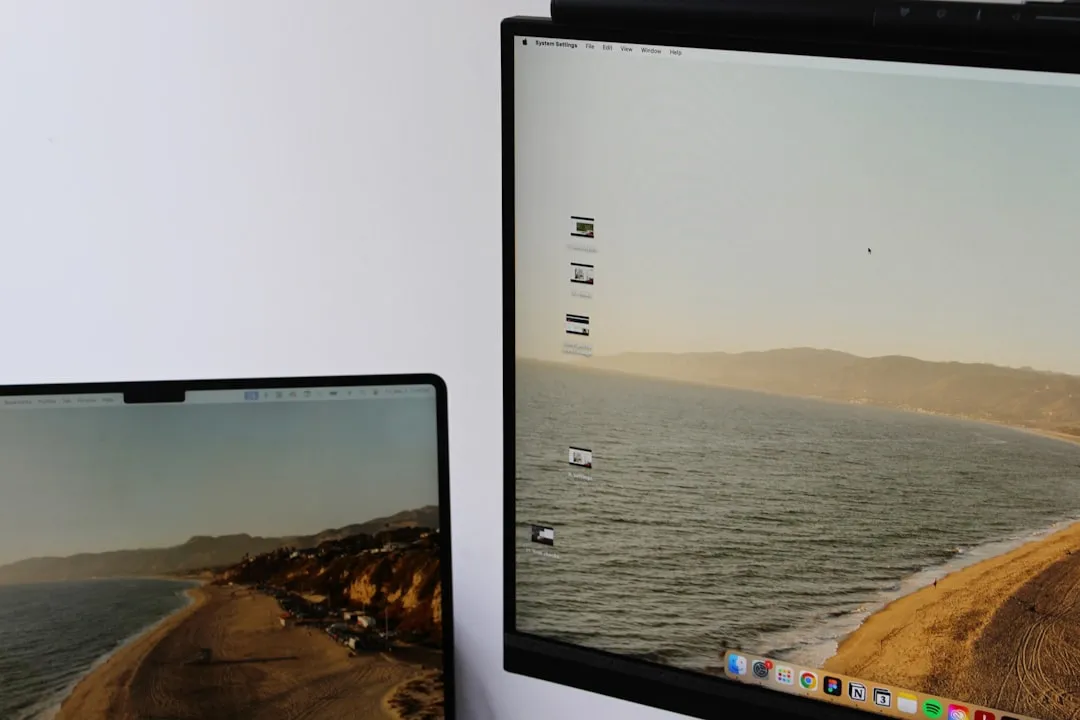
The dreaded visual glitch when opening windows—you know the one. That split-second stutter, flicker, or distortion that makes your screen look like it's having a brief visual glitch every time you launch an application. If you're running Windows 11 with a dual high-refresh-rate monitor setup and an NVIDIA GPU, you're probably not alone in this frustration.
This particular combination of hardware and software can contribute to display issues in some setups for window-opening visual anomalies. What makes it especially maddening is the inconsistency—your work PC might run flawlessly with similar specs, while your home setup acts up constantly. The good news? There's a systematic way to track down and eliminate these glitches.
Why dual high-refresh monitors create visual chaos
Here's what's really happening behind the scenes: high-refresh-rate monitors operating at different frequencies can confuse Windows 11's Desktop Window Manager (DWM). When you have one monitor running at 144Hz and another at 165Hz, the system can struggle to synchronize window animations smoothly across both displays. The DWM's composition engine must calculate frame timing for each display independently, creating synchronization gaps during window transitions.
Windows 11's Multi-Plane Overlay (MPO) technology compounds this timing challenge. MPO attempts to optimize rendering by using dedicated hardware planes for different visual elements, but when monitors operate at mismatched refresh rates, the overlay planes can fall out of sync. This creates the distinctive flicker effect where window elements appear to "tear" or stutter during opening animations.
NVIDIA's G-Sync and Variable Refresh Rate (VRR) technologies add another timing variable. While beneficial for gaming, these features can create conflicts in multi-monitor productivity setups. The GPU attempts to match frame delivery to each monitor's capabilities independently, but the resulting timing variations can manifest as visual artifacts during window operations—especially when transitioning between displays with different refresh capabilities.
The diagnostic checklist that actually works
Start with refresh rate synchronization across your monitors. Navigate to Display Settings and ensure both monitors are set to compatible refresh rates—ideally identical frequencies if your hardware supports it. Even a 15Hz difference between displays can trigger visual anomalies because Windows 11's animation system expects consistent timing intervals.
Next, examine hardware acceleration settings. Access Graphics Settings through Windows Settings and disable hardware acceleration for problematic applications. For system-wide MPO issues, disable Multi-Plane Overlay through the Registry Editor by navigating to HKEY_LOCAL_MACHINE\SOFTWARE\Microsoft\Windows\Dwm and creating a DWORD (32-bit) value named 'OverlayTestMode' set to 5.
Pro tip: Always create a registry backup before making modifications. The MPO disable setting forces Windows to use traditional composition methods, which are more stable but potentially less efficient. Restart your PC for the change to take effect.
GPU driver management requires a strategic approach. Perform a clean installation of your NVIDIA drivers using DDU (Display Driver Uninstaller) to eliminate conflicting configurations. However, consider testing driver versions from 2-3 releases back if you're using cutting-edge refresh rates, as newer optimizations sometimes introduce instabilities for specific hardware combinations.
Advanced troubleshooting for persistent glitches
Monitor connection methods directly impact visual stability at high refresh rates. DisplayPort connections generally provide higher bandwidth and more consistent performance than many HDMI configurations. Verify your cables meet bandwidth requirements—DisplayPort 1.4 supports up to 240Hz at 1080p, while older 1.2 cables max out around 165Hz, depending on resolution.
Fine-tune G-Sync and VRR settings for dual-monitor optimization. In NVIDIA Control Panel, experiment with enabling G-Sync only on your primary gaming display while disabling it on secondary productivity monitors. This asymmetric configuration eliminates cross-monitor timing conflicts while preserving smooth performance where it matters most.
Address Windows scaling and HDR inconsistencies that force additional DWM processing. Mismatched scaling percentages (100% on one monitor, 125% on another) require real-time calculations as windows transition between displays. Similarly, mixed HDR configurations create processing overhead as the system switches color pipelines. For maximum stability, maintain consistent scaling and HDR settings across monitors.
Clean boot methodology for isolation
System services and startup programs can interfere with display timing in unexpected ways. Perform a clean boot by typing "msconfig" in the Start menu, selecting "Selective startup," and unchecking "Load startup items." This isolates whether third-party software—particularly screen recording utilities, system monitors, or RGB lighting controls—contributes to visual glitches.
Examine Windows Update history if problems appeared recently. Cumulative updates occasionally introduce display regressions affecting multi-monitor configurations. Microsoft's testing typically focuses on common single-monitor setups, allowing edge cases to slip through. Consider temporarily rolling back recent updates if glitches coincide with specific patches.
For persistent cases, implement additional registry modifications targeting DWM behavior. Beyond MPO settings, adjust the "AnimationsShiftKey" value under HKEY_CURRENT_USER\SOFTWARE\Microsoft\Windows\CurrentVersion\Explorer\Advanced to reduce animation complexity during window operations.
Getting your setup back to smooth operation
The key to resolving Windows 11 visual glitches lies in systematic variable elimination rather than random troubleshooting attempts. Start with refresh rate synchronization, progress through hardware acceleration settings, and methodically work through driver and connection optimizations. Test each change thoroughly before proceeding to avoid introducing additional complications.
Most dual high-refresh-rate monitor issues stem from timing conflicts that Windows 11's DWM struggles to manage efficiently. By addressing refresh rate mismatches, fine-tuning hardware acceleration, and optimizing your NVIDIA settings, you can eliminate the visual stutters and flickers that disrupt your workflow.
Bottom line: These visual glitches are solvable with the right systematic approach. The goal isn't just fixing the immediate problem—it's creating a stable foundation that prevents these issues from recurring after Windows updates or driver installations. Your dual high-refresh setup should enhance productivity, not fight against it.




Comments
Be the first, drop a comment!