



Enable Xbox Full Screen Mode on Any Windows 11 PC
Xbox Full Screen Experience (FSE) replaces the standard Windows desktop taskbar, Start menu, and shell with a controller-friendly launcher built around the Xbox app. When the startup option is enabled, Windows limits or defers some background processes until the first time you switch to the desktop, which Microsoft Support says improves system performance and reduces startup time. The result is a PC that boots directly into a console-style interface, with the standard desktop still one keypress away.
This guide covers both the built-in toggle and the unsupported workaround for PCs where the toggle hasn't surfaced yet.
The workaround is unsupported by Microsoft. It involves registry edits, hidden feature flag activation, and device-type spoofing. Windows updates could break any part of it without notice. Revert steps are at the end.
Good fit for: Controller-first setups, living-room PCs, and single-display configurations where boot speed and memory headroom matter more than desktop flexibility. If you rely on multiple monitors, VPN tunneling at startup, or startup-loaded background software, read the caveats in the "What FSE actually changes" section before proceeding.
Before you start: requirements and tools
Confirm these before proceeding. Skipping this check wastes time.
Minimum requirements:
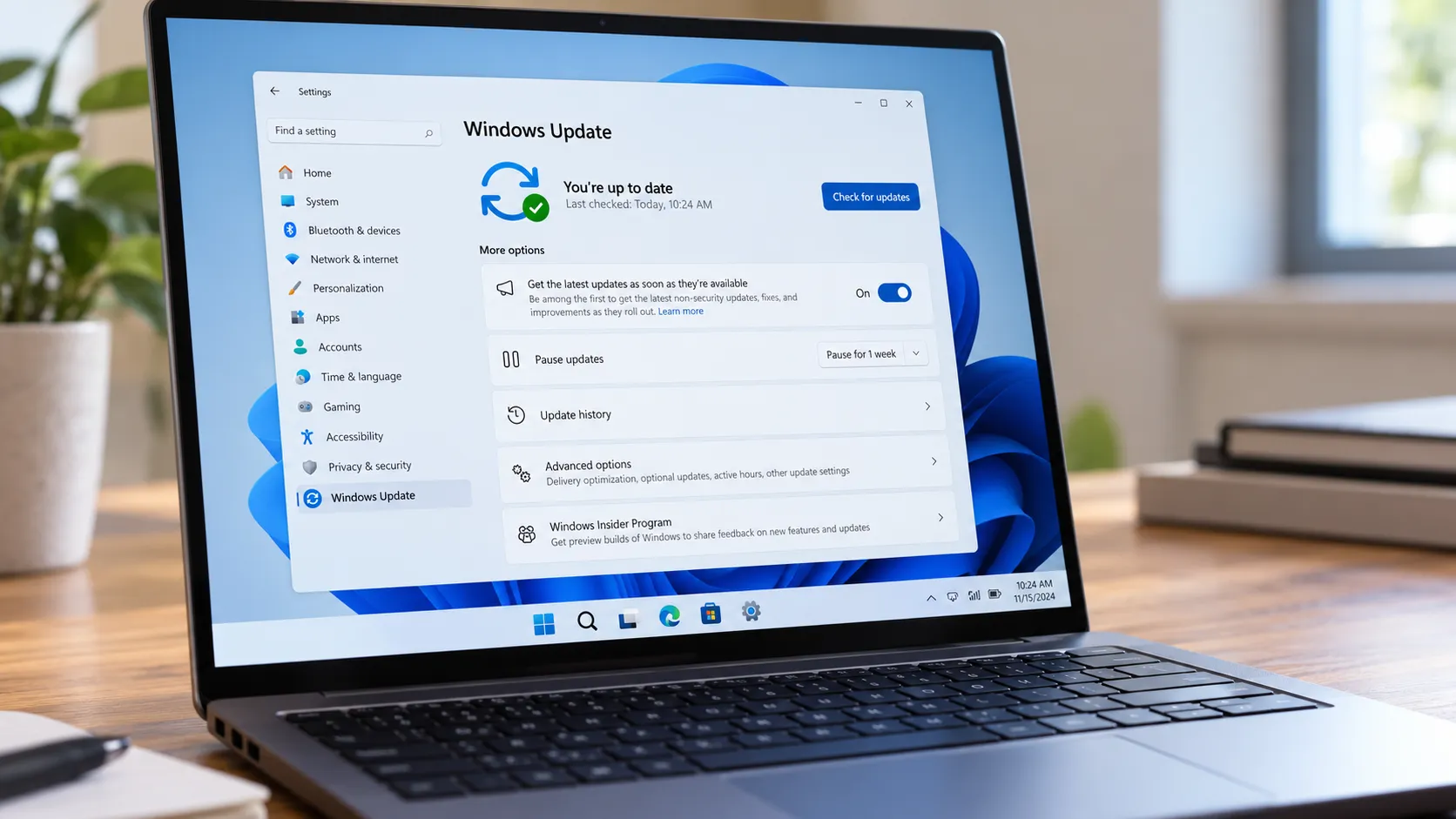
Windows 11 25H2, or 24H2 at build 26200.8037 or newer. Pureinfotech confirmed the build 26200.8037 threshold after retesting in March 2026. If the standard update path won't offer 25H2, an in-place upgrade via the official ISO is the fallback, per AllThings.How. Even on qualifying builds, staged rollouts may keep the toggle hidden the steps below handle that.
Xbox app installed, updated, and signed in. FSE uses it as the home launcher. Make sure it's current before proceeding.
Administrator access. Required for registry edits and scheduled tasks.
Tools needed for the manual path download these before starting:
ViVeTool activates hidden feature flags
Physpanel reports a compact panel size at boot to satisfy FSE's handheld device check. Developed by Rafael Rivera, who also contributes to ViVeTool, per XDA
PSExec (Microsoft Sysinternals) opens a SYSTEM-level Command Prompt required to run Physpanel with the necessary privilege level
A community-built one-click tool (covered in Step 2, Option A) handles the same setup automatically without any command-line work. Both methods produce identical results, according to Pureinfotech.
Step 1: Check whether the toggle is already available
Some users on qualifying builds will find FSE already surfaced through staged rollout. Check here before doing anything else.
Open Settings → Gaming → Full screen experience.
If the page appears, select Xbox under "Choose home app."
Enable "Enter full screen experience on startup."
Optionally, enable "Show accessibility control hints in Task View" this surfaces a one-button alternative to combo button presses, useful for controller-first setups.
Restart. The system should boot directly into FSE.
Once FSE is active, toggle it at any time with Win+F11, or switch between views using Win+Tab. Microsoft Support confirms the Xbox button and Game Bar (Win+G) also provide FSE entry once it's configured.
If "Full screen experience" doesn't appear under Gaming settings, move to Step 2.
Do not switch Insider channels just to unlock this feature. AllThings.How reported that some users only saw the setting after moving from the Release Preview channel to the Dev channel, but that move is effectively one-way without a clean reinstall. The manual path below works without any channel change.
Step 2: Force-enable FSE choose your method
Read this before proceeding. The steps below involve spoofing device type in the registry, activating hidden feature flags, and scheduling a boot task. These changes may break after major Windows updates. The full revert procedure is in the final section. Proceed only if you're comfortable with that tradeoff.
Option A Community tool (simpler)
A community-developed tool on GitHub automates the entire setup on Windows 11 24H2 and 25H2 at build 26200.8037 or newer, without requiring manual registry edits or command-line steps, per Pureinfotech.
Download the tool from its GitHub repository and inspect the source before running it this is a community utility, not a Microsoft-signed application.
Run it, click "Enable Xbox mode," and confirm the prompt.
Restart, then proceed to configure FSE in Settings as described in Step 2d below.
If the tool doesn't work on your build, or you'd rather control each change individually, use Option B.
Option B Manual method
Step 2a Enable feature flags with ViVeTool
Run an elevated Command Prompt from the ViVeTool folder and execute:
vivetool /enable /id:59765208
(Pureinfotech, tested March 2026)
ID conflict note: Earlier guides from AllThings.How and XDA used 52580392 and 50902630 instead. If 59765208 doesn't surface the setting after a restart, try those two earlier guides used different IDs, and what works can vary by build. Note which IDs you used, because the revert section requires them.
Step 2b Set the DeviceForm registry value
Navigate to: HKEY_LOCAL_MACHINE\SOFTWARE\Microsoft\Windows NT\CurrentVersion\OEM
Create a new DWORD (32-bit) value named DeviceForm. Set it to 0x2e in hexadecimal (46 in decimal). This tells Windows the machine is a handheld-class device. The value and registry path are confirmed independently by AllThings.How, XDA, and Pureinfotech.
Step 2c Desktop PCs only: schedule Physpanel at boot
Handhelds and laptops with built-in displays will generally pass FSE's panel-size check automatically. Desktop PCs have no internal display, so they need to report a compact panel size at boot to satisfy the same check, per AllThings.How and XDA. Using PSExec to open a SYSTEM-level Command Prompt, run:
schtasks /create /tn "SetPanelDimensions" /tr "C:\path\to\physpanel.exe set 155 87" /sc onstart /ru SYSTEM /rl highest /f
Replace the path with the actual location of physpanel.exe. This creates a task that sets compact panel dimensions early in the boot process, satisfying FSE's handheld check. (AllThings.How, XDA, Pureinfotech)
Laptop/battery note: If running on a laptop without constant AC power, open Task Scheduler, find the SetPanelDimensions task, go to the Conditions tab, and uncheck "Start the task only if the computer is on AC power." Without this change, FSE won't engage on battery. (XDA)
Defender flag: If Windows Defender flags Physpanel during setup, AllThings.How recommends downloading the latest signed release from the official GitHub page.
Step 2d Restart, then configure FSE in Settings
After restarting, go to Settings → Gaming → Full screen experience. Select Xbox as the home app, enable "Enter full screen experience on startup," and optionally enable the accessibility control hints. Restart once more. The system should now boot into FSE.
Troubleshooting: common problems and fixes
"Full screen experience" still missing after restart: Confirm you're on build 26200.8037 or newer. If the build is correct, Pureinfotech notes that enrolling in the Xbox Insider program may be a remaining requirement in some cases. Also try the alternate ViVeTool IDs (
52580392and50902630) if59765208produced no result.FSE doesn't engage on battery: See the AC power condition fix in Step 2c above.
Defender flags Physpanel: Use the latest signed release from the official GitHub repository.
Secondary monitors go blank when docked: AllThings.How confirmed this is a known behavior in FSE mode. Multi-monitor setups are poorly supported at this stage. If external displays are part of your daily setup, this workaround is not ready for you.
Sleep/resume behaves unexpectedly: FSE doesn't change Windows' underlying sleep implementation. AllThings.How found hibernation consistently more reliable than S3 sleep it adds a few seconds to suspend and resume, but avoids unexpected wakeups and idle battery drain.
Background apps not appearing at startup: Expected behavior, not a bug. Microsoft Support confirms that when the startup FSE option is enabled, background apps don't load until the first time you switch to the desktop. To override this for a specific app, manage it via Settings → Apps → Startup.
What FSE actually changes and what it doesn't
What you gain is mostly boot behavior and memory headroom, not frame rate.
When FSE is active, Windows skips loading the taskbar, Start menu, and desktop shell at boot. It also drops several legacy networking drivers from the RAS stack, including NDProxy.sys, AgileVpn.sys, rasl2tp.sys, and raspptp.sys. According to XDA's boot-log diff analysis on the Ayaneo 3, disabling this enterprise and legacy stack reduces DPC latency, simplifies the networking layer, and trims startup overhead. The measurable gains are lower memory usage and a cleaner, faster boot path.
Frame rates are a different story. XDA tested FSE on the ROG Xbox Ally X and found performance barely improved, a result XDA described as consistent with other device reviewers at the time. Microsoft claims the feature "improves system performance while gaming, battery life, and reduces startup time," per Microsoft Support but XDA's testing suggests those gains apply primarily to startup behavior and memory, not in-game benchmarks. Don't enable this expecting fps improvements.
Game compatibility is unlikely to be an issue. XDA notes that FSE is designed to be backward compatible, meaning games that run on standard Windows should run the same way under FSE.
Who should wait: Multi-monitor users, anyone who depends on startup-loaded background software, and setups where VPN connectivity at boot matters. XDA's boot-log analysis confirmed that the stripped networking stack means VPN tunneling protocols L2TP, PPTP, PPPoE, SSTP are not loaded when FSE is active. Switching to the desktop first is required before those connections become available.
How to revert all changes
Go to Settings → Gaming → Full screen experience and set "Choose home app" to None. This disables FSE immediately.
Open an elevated Command Prompt and run the ViVeTool disable command for whichever IDs you used:
If you used the 2026 ID:
vivetool /disable /id:59765208If you used the earlier IDs:
vivetool /disable /id:52580392andvivetool /disable /id:50902630
(Pureinfotech; AllThings.How)
Delete the
DeviceFormvalue fromHKEY_LOCAL_MACHINE\SOFTWARE\Microsoft\Windows NT\CurrentVersion\OEMin Registry Editor.Open Task Scheduler and delete the
SetPanelDimensionstask.Restart. The system returns to the standard Windows desktop.
Should you enable it?
The engineering underneath FSE is deliberate. Stripping legacy networking drivers, deferring startup apps, and bypassing the shell on boot are tradeoffs Microsoft made specifically for handheld gaming devices and they translate to any PC where boot speed and memory footprint matter more than desktop flexibility. XDA's analysis confirmed the depth of those changes through direct boot-log inspection.
On a single-display setup, the workaround appears usable based on current testing, but it remains unsupported. Pureinfotech says it retested the method in March 2026 and confirmed it works on build 26200.8037. The three layers of change feature flags, registry value, Physpanel task should each be verified after any major Windows update.
If you need multi-monitor support or VPN connectivity at boot, waiting for the official rollout is the cleaner path. Microsoft has stated plans to bring FSE to standard PC form factors through the Windows and Xbox Insider programs, per Pureinfotech from late 2025. When that reaches general availability, the Settings toggle should surface on its own and this workaround becomes unnecessary. Until then, the revert steps above are your exit.



Comments
Be the first, drop a comment!