





How to Fix Taskbar App Icon Underline After Closing in Windows 11
There are two completely different taskbar indicator problems in Windows 11, and most troubleshooting guides treat them as one. This guide helps you identify whether the underline or dot beneath a taskbar icon is normal Windows behavior, a preference you can't change, or the documented 24H2 bug that causes the underline to persist after an app has fully closed and tells you exactly what to do in each case. Start with the diagnosis step.
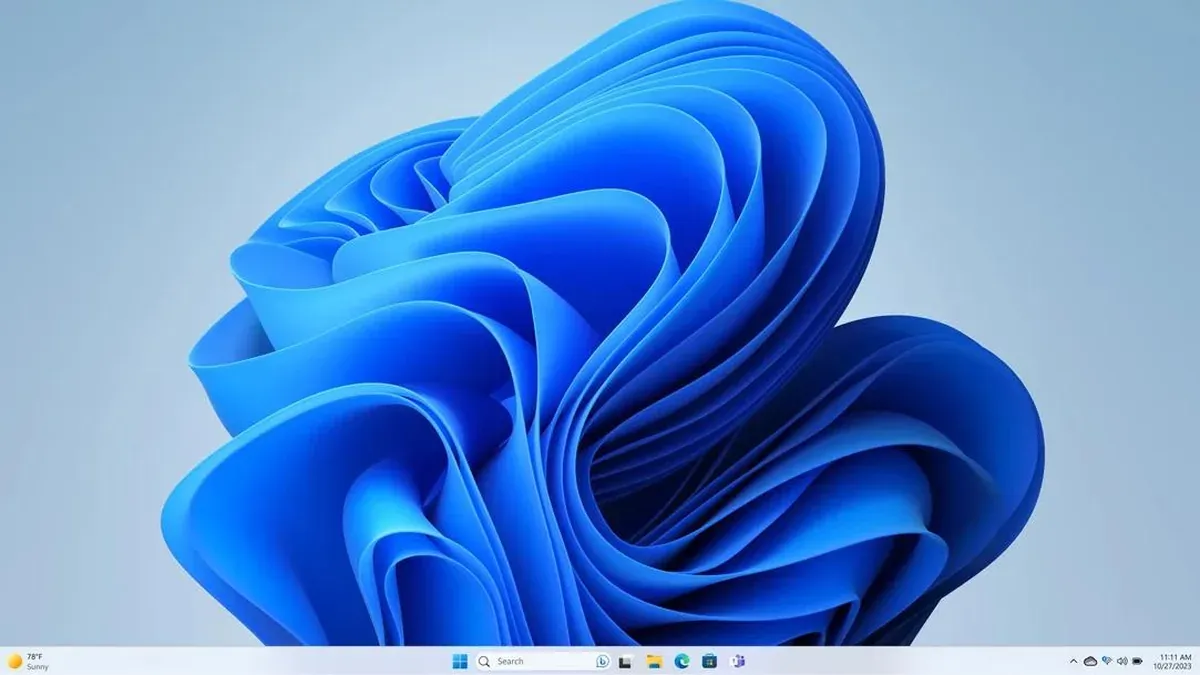
The core distinction: Windows 11 uses a short gray dot to show apps that are open but not currently in focus. That's intentional. A separate bug in Windows 24H2 causes the underline to remain beneath an icon even after the app has been fully closed and no longer appears in Task Manager. Those are different problems.
Here's what the indicators actually mean, per Microsoft Support (February 2025), with additional detail from community contributors at ElevenForum (January 2023):
- A wider line beneath an icon marks the app that currently has focus.
- A shorter gray dot marks apps that are open but minimized or running in the background Microsoft confirms the line indicates a running app; community reports describe the short-dot vs. wide-line distinction in practice.
- A stuck underline on a closed app (confirmed absent from Task Manager's Processes list) is the 24H2 bug.
The 24H2 underline-persistence issue spans builds 26100.863, .994, .1000, and later .1301, meaning it survived multiple cumulative updates, per Microsoft Answers reports (February 2025). Microsoft community staff confirmed the issue was escalated to the engineering team internally, though no KB article or patch timeline has been published.
Prerequisites: You'll need access to Task Manager (Ctrl + Shift + Esc) and the ability to right-click entries in its Processes tab. No registry editing, administrator tools, or third-party software required.
Step 1: Diagnose which problem you actually have
First, confirm you're running Windows 11 24H2. Go to Settings > System > About and check the Version field. If it doesn't show 24H2, the stuck-underline bug described here likely doesn't apply to your machine.
Close the app in question using the X button in the top-right corner. Then press Ctrl + Shift + Esc to open Task Manager and click the Processes tab.
Look for the app in the list.
- The app still appears in Processes. The indicator is accurate. The app hasn't fully closed; it may be finishing background work, or it's designed to keep running after the window closes. Browsers, chat apps, and anything that minimizes to the system tray behave this way. Check whether the app has a "run in background" or "close to system tray" setting and disable it if you want a full exit when you click X.
- The app is gone from Processes but the underline is still on the taskbar. That's the 24H2 bug. The taskbar hasn't registered that the process ended. Go to Step 2.
- You're not on 24H2 and you simply see a gray dot under minimized apps. That's normal behavior. Skip to Step 3.
Gotcha tabbed apps behave differently. The stuck-underline bug appears most often with tabbed applications. Microsoft Answers users (February 2025) identified Firefox, Edge, File Explorer, and Notepad as consistent triggers. One user found a meaningful pattern: closing all tabs individually before clicking X prevented the ghost underline from appearing; clicking X directly while tabs were still open triggered it every time. Test that distinction before assuming your entire system is affected.
Note on build variation. Some ElevenForum users (January 2023) report seeing no gray dots at all on certain Windows 11 releases. If you have third-party taskbar software such as StartAllBack installed, it may be suppressing the indicator display. Test with default taskbar settings before drawing conclusions about what normal looks like on your machine.
Step 2: Fix the stuck underline by restarting Windows Explorer
Restarting the Windows Explorer process refreshes the taskbar's display state and takes about five seconds. This is the confirmed workaround for the Windows 11 taskbar icons stay underlined after closing problem in 24H2, suggested specifically for this issue by Microsoft community staff at Microsoft Tech Community (February 2025).
- Press Ctrl + Shift + Esc to open Task Manager.
- Click the Processes tab.
- Scroll down to find Windows Explorer in the list.
- Right-click Windows Explorer and select Restart.
Your taskbar and desktop will briefly disappear and reappear. That's expected. After Explorer reloads, check the taskbar the ghost underlines should be gone.
What to expect: The fix is temporary. Closing another tabbed app with the X may trigger the stuck underline again. Repeat the Explorer restart as needed. This clears the visual glitch only; it doesn't address the underlying cause.
Gotcha: If Explorer restarts stop working after a Windows update, that update may have changed the underlying behavior. Retest from Step 1 to confirm the bug is still presenting the same way before assuming the same fix applies.
The underline-persistence bug was documented across at least four cumulative update versions and confirmed received by Microsoft's engineering team as of February 2025, per Microsoft Answers. No permanent fix has been published.
Why Windows 11 taskbar icons stay underlined after closing and when that's by design
If Task Manager confirmed the app is still running and you're not dealing with a bug at all you simply want minimized apps to display a uniform blue line as they did in Windows 10, rather than the shorter gray dot there's no supported setting for this.
A user on ElevenForum (January 2023) asked forum administrator Brink directly whether a Registry Editor tweak could force background apps to show a blue line. Brink replied that he wasn't aware of any method. That's community expertise rather than official Microsoft documentation, but no registry key, group policy setting, or accessibility option for this has appeared in any available source since.
The gray dot is doing exactly what it was designed to do. Microsoft Support (February 2025) confirms that running apps are marked with a line under the icon; community contributors at ElevenForum (January 2023) explain the distinction in practice: the wider line marks the focused app, the shorter dot marks apps that are open but sitting in the background. It's a status signal, not an arbitrary style decision.
Some third-party taskbar customization tools do affect this behavior. StartAllBack appears to suppress the dots on some machines, based on ElevenForum user reports (January 2023). Whether any specific tool can reliably remove the gray dot across Windows versions is unverified. Treat that path as experimental you may trade one visual quirk for another.
Next steps and what to watch for
The gray dot under inactive taskbar icons is intentional, thinly documented by Microsoft, and not adjustable through any native setting. The stuck underline that persists after app closure is a separate 24H2 bug. Restarting Windows Explorer clears it temporarily; Microsoft has not published a fix.
Two confirmed facts worth keeping in mind:
- The underline-persistence bug spans at least four build versions and was escalated to Microsoft's engineering team as of February 2025, but no patch or timeline has been published (Microsoft Answers).
- The Explorer restart is the only documented workaround; no registry fix, hotfix, or settings toggle has been confirmed by any source (Microsoft Tech Community, February 2025).
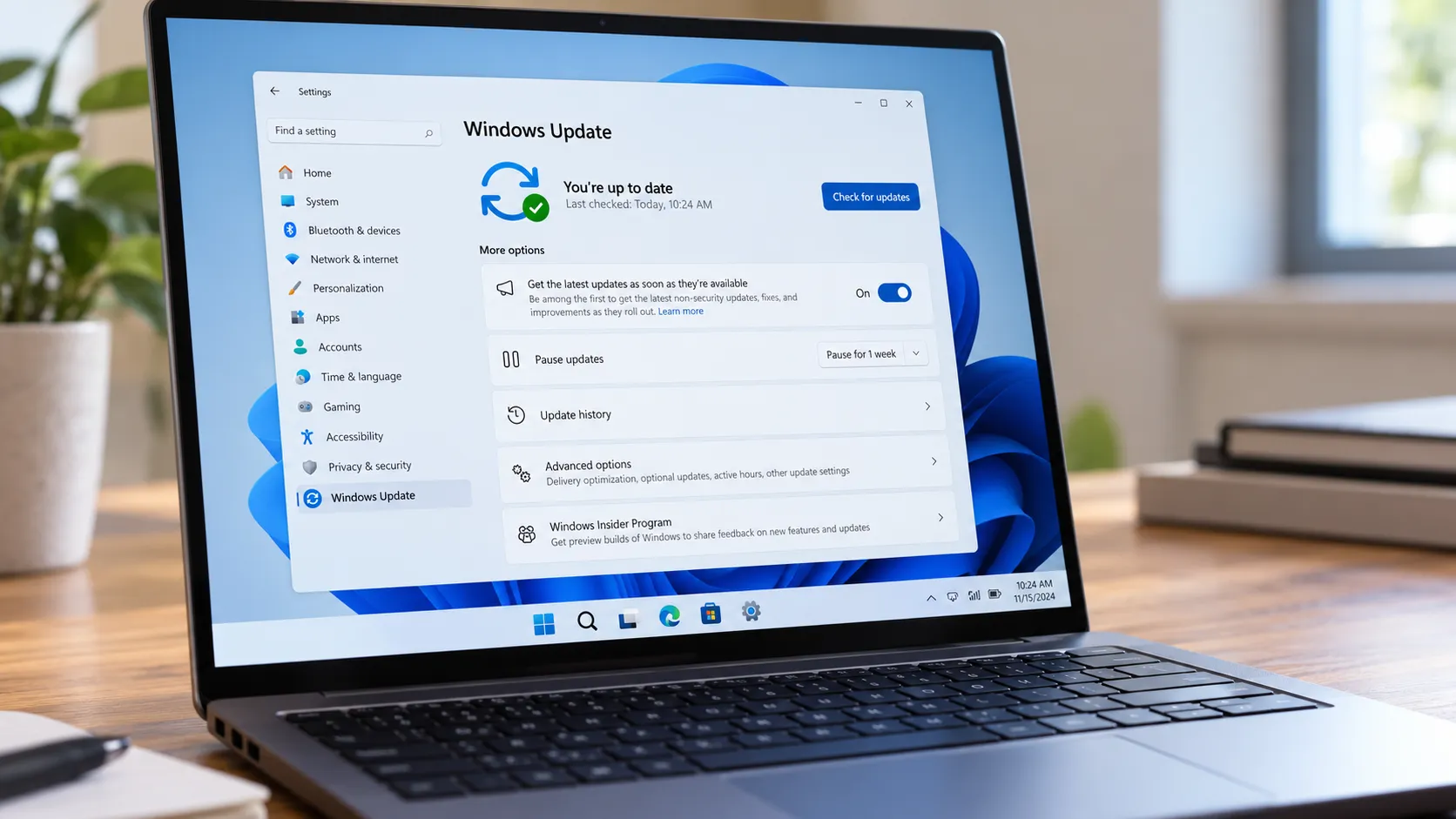
If the bug continues after updating: Install the latest cumulative update via Windows Update, then reproduce the issue once to confirm it persists. If it does, open Feedback Hub and include your build number (Settings > System > About), the names of affected apps, and whether those apps use tabs. Those details make the bug report more useful to the investigation. Watch the Microsoft Answers thread for community updates on patch status if a fix ships, that's where it will surface first.









Comments
Be the first, drop a comment!