



Smart App Control can now be turned on or off directly from Windows Security settings, without reinstalling Windows. That wasn't true until the April 2026 cumulative update (KB5083769) changed it. Before that update, disabling SAC was permanent: the only way back was a full reset or clean install.
One caveat on sources: some Microsoft Learn documentation still says re-enabling SAC requires a reset. Those pages predate the April 2026 change. The toggle works.
This guide covers whether your PC supports SAC at all, what each of the three modes actually does to your system, the exact steps to change the setting, and what to do when SAC blocks something you trust.
Before you start: Does your PC support Smart App Control?
SAC is absent on many Windows 11 machines. Worth confirming before anything else.
Smart App Control is only available on clean installs of Windows 11. Machines upgraded in place from Windows 10, or from an earlier Windows 11 build, won't show SAC in Windows Security regardless of update level. No update changes that. SAC debuted with Windows 11 version 22H2, according to XDA, and it has never been available on upgraded installations.
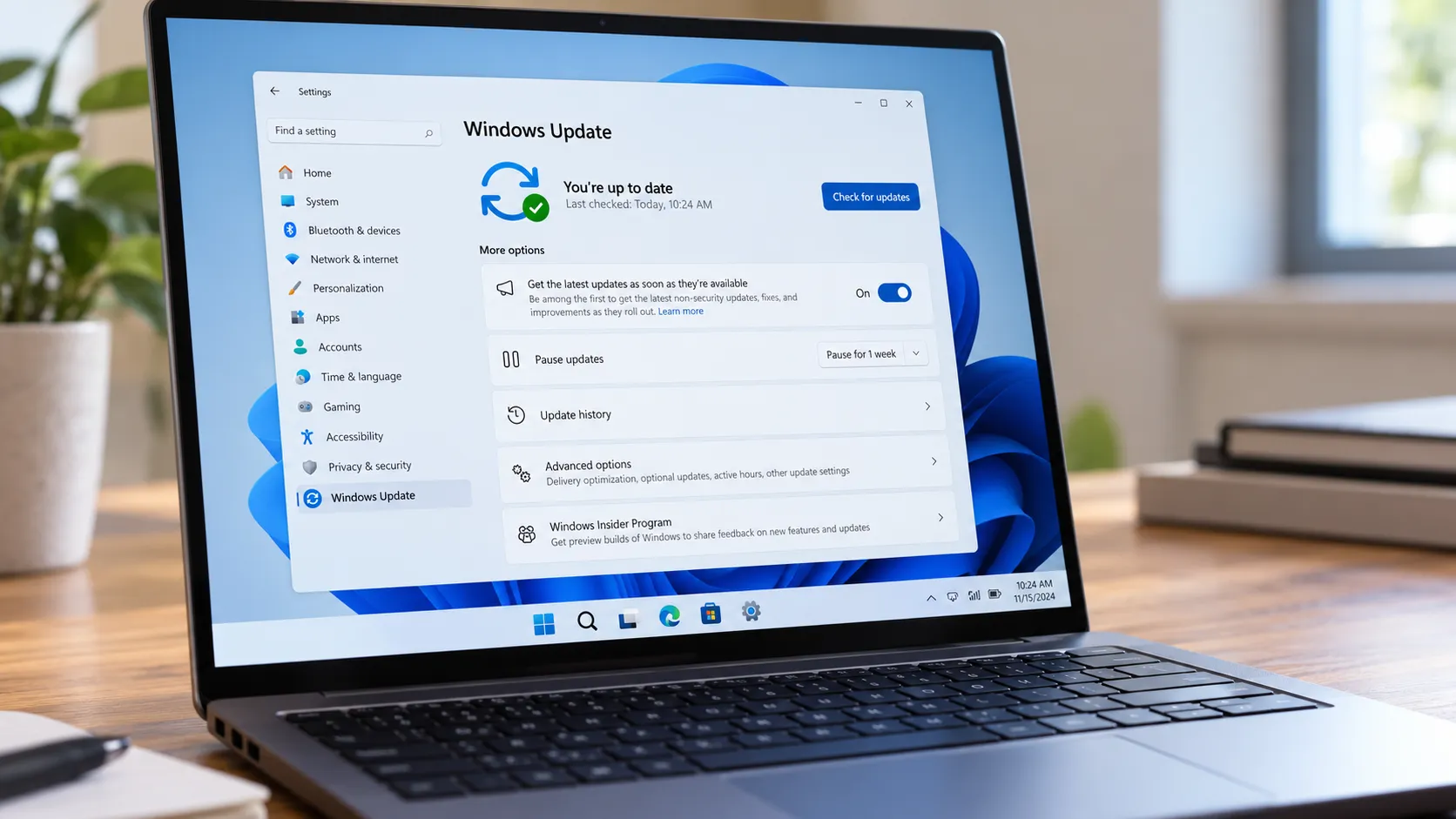
The reversible toggle is tied to the April 2026 Windows 11 security update. Microsoft is rolling update features out gradually, so some PCs may not see it immediately. Check your version under Settings > Windows Security > About before disabling SAC. Below that version, switching off is still permanent on your current system.
On enterprise-managed machines, SAC may be controlled by policy, so a missing or grayed-out setting may reflect an administrator's decision.
Eligibility at a glance:
Windows 11 installed clean, not upgraded in place
Smart App Control visible under App & browser control in Windows Security
Windows Security app v1000.29554 or later, for the reversible toggle
What Smart App Control's three modes mean in practice
Two minutes here saves a lot of frustration later.
Evaluation is where every eligible machine starts. SAC watches your app usage without enforcing blocks, building a picture of whether full enforcement would disrupt your workflow, per textslashplain. If you're unsure whether SAC will cause problems with your setup, this is the right place to stay while you find out.
On is full enforcement, and it goes considerably further than SmartScreen. Where SmartScreen checks the reputation of a downloaded .exe, SAC checks apps against Microsoft's cloud reputation signals and, when needed, uses code-signing signals to decide whether unknown or untrusted code should run.
Three other things change when SAC is on: SmartScreen Application Reputation is disabled (SAC supersedes it), the "Choose where to get apps" restriction is bypassed entirely, and Microsoft Defender Antivirus enters a reduced-activity Hybrid mode for most processes. Switching SAC off reverses all three, per textslashplain.
There is no per-app exception list. SAC is all-or-nothing, per Microsoft Q&A. When something is blocked, your options are to remove the file's Mark-of-the-Web or temporarily switch SAC off. That's it.
Off disables SAC enforcement. On updated systems, you can return to On or Evaluation from Windows Security. SmartScreen Application Reputation reactivates, Defender exits Hybrid mode, and the app source restriction lifts. On systems with the April 2026 update, this state is reversible. On older systems, it is not.
Which mode fits your situation:
Your situationRecommended modeFresh install, mainstream apps, want protection with minimal frictionEvaluation, or switch to On once settled inDeveloper, script-heavy workflows, niche or unsigned toolsEvaluation, or Off temporarily as neededMaximum protection, stable software diet, willing to troubleshoot blocksOnSAC causing persistent problems with trusted appsOff, then re-enable after installsManaged enterprise deviceContact IT; SAC may be policy-controlled
Windows 11 Smart App Control settings: how to find and change the toggle
Smart App Control lives under App & browser control in the Windows Security app. If it's not there, the installation almost certainly doesn't support it for the reasons covered above.
Before selecting Off: if your Windows Security app version is below v1000.29554, that choice is permanent on your current system. Confirm your version first.
Steps:
Open Windows Security by searching for it in the Start menu, or click the shield icon in the system tray.
Select App & browser control from the left navigation panel.
Click Smart App Control settings under the Smart App Control heading. Three options appear: On, Evaluation, and Off.
Select the mode you want. Approve the administrator confirmation prompt if it appears.
To re-enable SAC after disabling it: On systems with the April 2026 update, select On or Evaluation from the Off state. The requirement to reset or reinstall Windows no longer applies, as Topedia reported in late April.
To disable SAC temporarily: Select Off, confirm the prompt, complete whatever task SAC was blocking, then return here and select On or Evaluation. The disable-install-re-enable workflow now works as it should on updated systems, per Topedia. Keep the Off window short.
For IT administrators: SAC state can be managed at scale via the VerifiedAndReputablePolicyState DWORD at HKLM\SYSTEM\CurrentControlSet\Control\CI\Policy, with values 0 (Off), 1 (Enforce), and 2 (Evaluation). Run CiTool.exe -r after any registry change for it to apply, per Microsoft Learn.
When SAC blocks something you trust
SAC's block dialogs offer no override option, per textslashplain. No button to click, no "run anyway." When it stops something legitimate, work through these steps in order.
Step 1: Check Event Viewer before doing anything else. Navigate to Applications and Services Logs > Microsoft > Windows > CodeIntegrity > Operational. Event ID 3076 logs what Evaluation mode would have blocked; event ID 3077 logs active enforcement blocks. This tells you whether you're dealing with a one-off file or a pattern that points to deeper incompatibility, per XDA. Know what you're dealing with before touching the SAC toggle.
Step 2: Try removing the Mark-of-the-Web. If the file came from a source you trust, right-click it, open Properties, and unblock it at the bottom of the General tab. Removing the internet origin tag may allow the file to run without changing SAC's state, per textslashplain. This works for individual files you can directly vouch for. It won't help with multi-component installers or scripts that drop additional files.
Step 3: Disable SAC temporarily, then re-enable it. When Step 2 isn't practical, say a multi-component installer from a known vendor or a .ps1 script you wrote yourself, disable SAC via Windows Security, complete the task, and re-enable it immediately. On updated systems, this is reversible, per textslashplain. Keep the Off window short; don't leave it off and forget.
Step 4: Consider switching to Evaluation long-term. If SAC routinely blocks legitimate tools in your workflow, Evaluation may be the right steady state. It logs would-be blocks without enforcing them, giving you visibility without the friction of repeated temporary disables. The sources describe Evaluation as a watch-and-decide phase, not a designated permanent mode, but for a developer environment or script-heavy workflow, it's a reasonable long-term choice.
One edge case worth knowing: at least one documented instance shows SAC blocking a wide range of previously working applications, including Adobe products, immediately after a System Restore operation. Disabling SAC restored normal behavior in that case, per Microsoft Q&A. If SAC suddenly starts blocking apps that worked fine until a recent restore point, that's the first place to look.
Which mode should you use
The honest answer depends on what you run.
If your software is mainstream and signed, On is reasonable. SAC's enforcement is stricter than SmartScreen, and that strictness is the point. If you work regularly with scripts, developer builds, or unsigned tools, Evaluation gives you the logging without the blocks. Off is for specific tasks on updated systems, not a default state to leave it in indefinitely.
SAC's dangerous file-type list is baked in and not customizable, per textslashplain. There's no registry key to add exceptions, no policy to soften enforcement for particular apps. The practical workaround for trusted edge cases is the temporary disable-and-re-enable cycle. On systems with the April 2026 update, that's no longer a commitment; it's just a workflow.











Comments
Be the first, drop a comment!