





Turn On or Off File and Printer Sharing in Windows 11: Full Guide
The Advanced Sharing Settings panel shows "on." The network profile says Private. And the other PC is still invisible in File Explorer. If that's your situation, the toggles aren't broken they're just not the whole answer.
To turn on or off file and printer sharing in Windows 11 correctly, three layers need to work together: the network profile must be set to Private, the sharing toggles must be enabled for that profile, and the SMB authentication requirements introduced by recent Windows 11 security updates must be satisfied. A gap at any one layer produces the same surface symptom—no access—but requires a different fix. Microsoft Learn documented mandatory SMB signing, NTLM blocking, and authentication rate limiting as deliberate additions to Windows 11's default security posture, and these changes can interrupt sharing even when the UI looks correctly configured.
This guide walks through enabling or disabling sharing step by step, closes the gap that catches most users (enabling sharing without actually sharing anything specific), explains how to verify the setup worked, and provides a prioritized diagnostic sequence for when it still doesn't.
Before you start: prerequisites
This guide applies to Windows 11 on a home or small-office workgroup network. Domain-joined environments use different discovery and authentication mechanisms; those are outside scope here.
Both machines need to be on the same local network the one hosting the share and the one accessing it. You'll need admin rights on the machine being configured to change these settings.
One structural point worth establishing before touching anything: enabling file and printer sharing at the system level permits sharing to occur. It does not automatically share any specific folder or printer. That second step is covered in Layer 3, and skipping it is why a correctly configured machine can appear completely inaccessible to everyone else on the network.
Layer 1: Set the network profile to Private
This is the prerequisite that most tutorials bury in a footnote. Nothing else works until it's right.
Private tells Windows this is a trusted network where the PC should be visible and reachable. Public does the opposite, enforced system-wide. When the network profile is set to Public, Windows 11 hides the device from other machines and prevents it from functioning as a sharing host the Advanced Sharing Settings toggles have no effect regardless of what they show, as confirmed by Microsoft Q&A earlier last year.
Confirming the Private profile is the required first step, and Microsoft Learn Answers consistently shows it's the one users most frequently skip.
Steps:
Open Settings → Network & Internet
Select your active connection Wi-Fi or Ethernet
Under Network profile type, select Private
Verify by checking both the connection Properties view and Network & Internet → Status both should report Private
Gotcha: Windows 11 sometimes shows conflicting status across these two pages. Properties reports Private; Status still shows Public. If that happens, disconnect from the network and reconnect. At least one documented case resolved entirely this way, with no other changes required.
Once both pages agree on Private, the sharing toggles can actually do their job.
Layer 2: How to turn on or off file and printer sharing in Windows 11
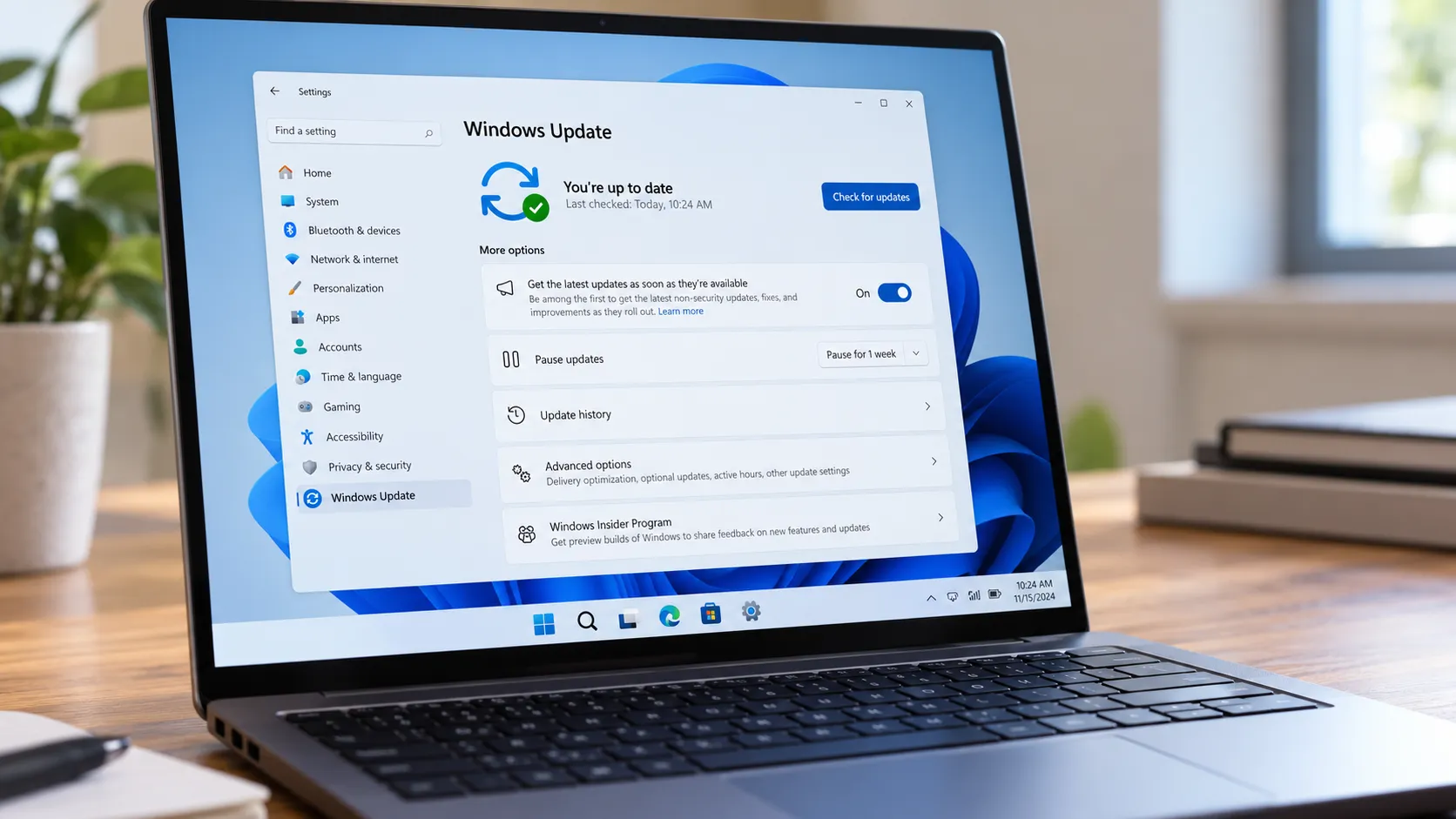
Navigate to Control Panel → Network and Internet → Network and Sharing Center → Change advanced sharing settings. The same panel is reachable via Settings → Network & Internet → Advanced network settings → Advanced sharing settings.
The settings are organized by network profile. Work only within the Private section.
To turn file and printer sharing ON:
Under the Private profile, select Turn on network discovery
Select Turn on file and printer sharing
Click Save changes
Restart both the machine hosting the share and the machine that will access it
That restart matters. Changes to these settings sometimes don't propagate cleanly without a reboot, as reported in community testing following the September 2025 KB5065426 update.
Expected result: After restarting, other devices on the same Private network should appear under Network in File Explorer. No specific folder or printer is shared yet that's Layer 3.
To turn file and printer sharing OFF:
Under the Private profile, select Turn off network discovery and Turn off file and printer sharing, then save changes. Disabling is appropriate for any network you don't control: public Wi-Fi, hotel networks, guest office connections. For machines that will never serve as file hosts, Microsoft recommends disabling the SMB Server service entirely to reduce the attack surface, provided no local applications depend on it.
Both toggles Network Discovery and File and Printer Sharing must be enabled together, as noted in Microsoft Learn Answers. Sharing enabled, discovery off: other machines can't find the host. Discovery on, sharing off: they can see it but can't connect.
Layer 3: Share a specific folder or printer
Enabling file and printer sharing opens the door. Sharing a folder or printer is what puts something on the other side of it. A machine with sharing enabled but no shared folders is correctly configured and completely inaccessible to everyone else on the network.
To share a folder:
Right-click the folder in File Explorer and select Properties
Go to the Sharing tab and click Share
Add the user or group that should have access, set the permission level (Read or Read/Write), and click Share
Note the network path shown (e.g.,
\\MachineName\FolderName) this is what other users will type to access it directly
To share a printer:
Open Settings → Bluetooth & devices → Printers & scanners
Select the printer, then Printer properties
On the Sharing tab, check Share this printer and give it a share name
Expected result: The shared folder or printer should now be visible to other users on the same Private network when they browse Network in File Explorer, or accessible by entering the network path directly in the address bar.
How to confirm file and printer sharing is working
Before moving to diagnostics, run these three quick checks from the second machine.
In File Explorer's address bar, type
\\MachineName\ShareNameand press Enter. A successful connection means sharing is working end to end.If that fails, try
\\192.168.x.x\ShareNameusing the host's IP address instead. Success here means sharing itself is fine the problem is name resolution.Browse to Network in File Explorer and confirm the host machine appears and the shared folder or printer is visible.
If all three fail after a restart on both machines, the diagnostic sequence below will help identify which layer is broken.
When sharing still fails: a prioritized diagnostic sequence
Work through these steps in order. Each one assumes the previous has passed.
Step 1: Confirm the Private profile is actually applied
Symptom: No devices visible under Network in File Explorer, or File Explorer shows a banner saying discovery is off.
Check both the connection Properties page and the Network Status page as described in Layer 1. If they conflict, disconnect and reconnect. Community testing reported that the KB5065426 Windows update, released in September 2025, reset some machines' network profiles from Private to Public without notice and in some cases disabled File and Printer Sharing and Network Discovery outright, per the thread. Worth checking even if the profile was correctly set before the update installed.
Step 2: Restart both machines after confirming settings
Symptom: Settings appear correct but access still fails.
Profile changes and sharing toggle updates don't always take effect immediately. Restart both the machine hosting the share and the one accessing it before doing anything else. Community reports tied to KB5065426 consistently found that restarting after re-enabling settings resolved access failures in a number of cases though results varied, and it's a low-cost step worth trying before deeper troubleshooting.
Step 3: Test access by IP address instead of machine name
Symptom: The device appears under Network but clicking it fails, or access by name returns an error.
In File Explorer's address bar, type \\192.168.x.x\ShareName using the host machine's IP address. If this works, the sharing configuration is correct and the problem is name resolution, not the sharing settings themselves. This workaround was reported as effective in environments where name-based access broke after KB5065426.
Step 4: Check whether credentials or guest access are the blocker
Symptom: A username and password prompt appears; credentials seem correct but are rejected repeatedly.
Users affected by KB5065426 reported that guest-style access stopped working after the update, consistent with Windows 11's tighter SMB defaults including blocked insecure guest logons documented in community reports and reflected in Microsoft Learn's security overview. On the accessing machine, try entering the host machine's credentials explicitly in the format MachineName\Username along with the account password.
If the host is running Windows 11 Home and passwordless guest-style access is specifically required, re-enabling insecure guest authentication requires a registry edit: create a DWORD value named AllowInsecureGuestAuth set to 1 at HKEY_LOCAL_MACHINE\SYSTEM\CurrentControlSet\Services\LanmanWorkstation\Parameters, as documented in the KB5065426 thread. This is a deliberate security downgrade and should be approached with caution on any shared or semi-trusted network.
Step 5: Check for legacy device or SMBv1 dependency
Symptom: A NAS device, older network printer, or non-Windows machine is unreachable despite correct sharing settings.
Windows 11's default configuration favors newer SMB protections mandatory SMB signing, NTLM blocking, and authentication rate limiting and older devices that still depend on SMBv1 may fail silently against a fully updated Windows 11 host, per Microsoft Learn. Community reports in the KB5065426 thread confirmed NAS appliances running Samba stopped connecting after the update was installed, with no fix short of uninstalling it on affected machines.
SMBv1 can be re-enabled via Control Panel → Programs → Turn Windows features on or off → SMB 1.0/CIFS File Sharing Support. The protocol has known, unpatched vulnerabilities. Enable it only on isolated, fully trusted Private networks, only when a specific legacy device requires it, and treat it as a temporary measure while planning a longer-term fix.
Step 6: Check for duplicate machine SIDs (managed environments only)
Symptom: Sharing works between most machines but fails between specific pairs particularly machines deployed from the same image with credential prompts that valid credentials never satisfy.
Community testing on Windows 11 24H2 found a consistent pattern: file and printer sharing between machines with the same machine Security Identifier (SID) fails when KB5065426 is installed, while machines with different SIDs share normally under the same update, according to that testing. The long-term fix is to redeploy cloned systems with unique machine identities the standard approach for organizations using disk imaging.
This step applies only to managed environments using cloned images. Home users and small offices with independently installed Windows instances won't encounter it.
Symptom quick reference:
What you seeWhere to startNo devices visible under NetworkCheck network profile likely Public or conflictedSharing banner shows discovery is off despite correct settingsDisconnect and reconnect to network; restartDevice visible but access failsTest by IP address; then check credentialsCredential prompt loops even with the correct passwordGuest access blocked by default; check host account settingsNAS or older printer unreachableCheck for SMBv1 dependencyFails only between specific cloned machinesDuplicate machine SID redeploy with unique identities
What to expect going forward
The practical takeaway for home networks is straightforward: get the profile right, use real credentials, restart both machines. That sequence handles the large majority of failures.
For small offices running older NAS hardware or cloned machine images, the calculus is different. Microsoft's direction on SMB security is clearly toward stronger defaults mandatory signing, blocked guest access, reduced legacy protocol support and Microsoft Learn frames these as intentional design decisions, not regressions. The sharing infrastructure needs to keep pace.
If a specific device an older printer, a NAS appliance, a scanner stopped working after a Windows update in the past several months, SMBv1 dependency or blocked guest logons are the most likely culprits. Check those before assuming the device itself has failed.







Comments
Be the first, drop a comment!